
NID Hard Down
Bertram uses Trango NIDs for all their fiber customers. These receive their power from a standard PoE injector inside the home or business similar to our fixed wireless customers. If their NID is offline have them go to their router, follow the cable on the WAN port back to the PoE injector and verify that there is a light on the PoE injector and that it is cabled properly. The cable from outside should be plugged into the Data+Power or PoE port and the cable from their router should go to the Data port.
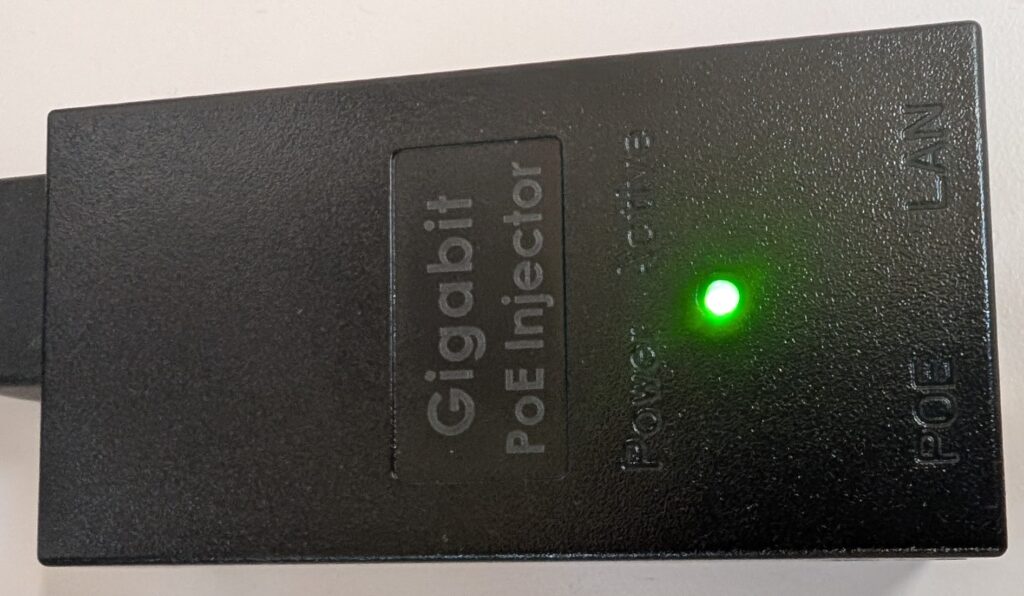

If there is no light on the PoE injector verify that the outlet it is plugged into has power and move it to a known good outlet. If there is still no light then it likely needs replacement. We will need to reach out to Five Star or they can stop by the Random Lake or Baileys Harbor office if they are nearby.
If there is a light on the PoE injector and power cycling the poe injector doesn’t get the NID back up then escalate internally. Level 2 or network engineering can check the fiber router for active sessions.
NID Up, But Customer Indicates No Connection
If you can ping the NID, but the customer indicates no connection, make sure that there is an Option 82 Enabled router on their account under Equipment (it will not probe). Do not make any changes to their equipment, but if there is no router or the router does not show as Option 82 then alert Level 2.

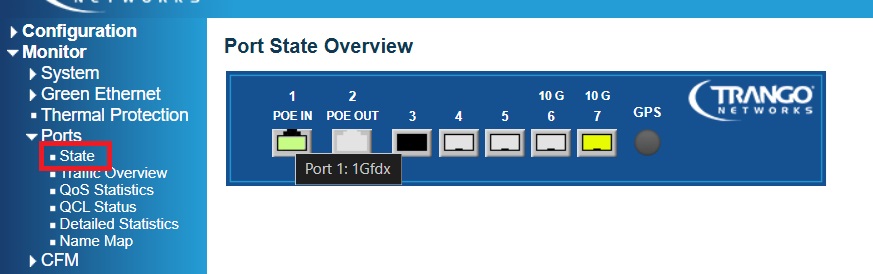
Next, try to log in to the NID. The username and password should be admin/trango. After logging into the NID click on Ports, followed by State. When hovering over the Port 1 POE IN you should see 1 GFdx indicating a 1 GB ethernet link to their router. If you see 100M it is likely that their router’s WAN port is only capable of 100mbps max which will severely limit their speeds. Alternatively, if the link continues to show only 100mbps after verifying their model of router is capable of gigabit ethernet then there could be an issue with the patch cable or the cable run from the NID.
Next, click on MAC Table. You will see a list of MAC Addresses. Most of them are the NID itself or from the Uplink to the Fiber Hub which is on Port 7. There should be 1 MAC address which is only showing up on Port 1 that correlates with their router.
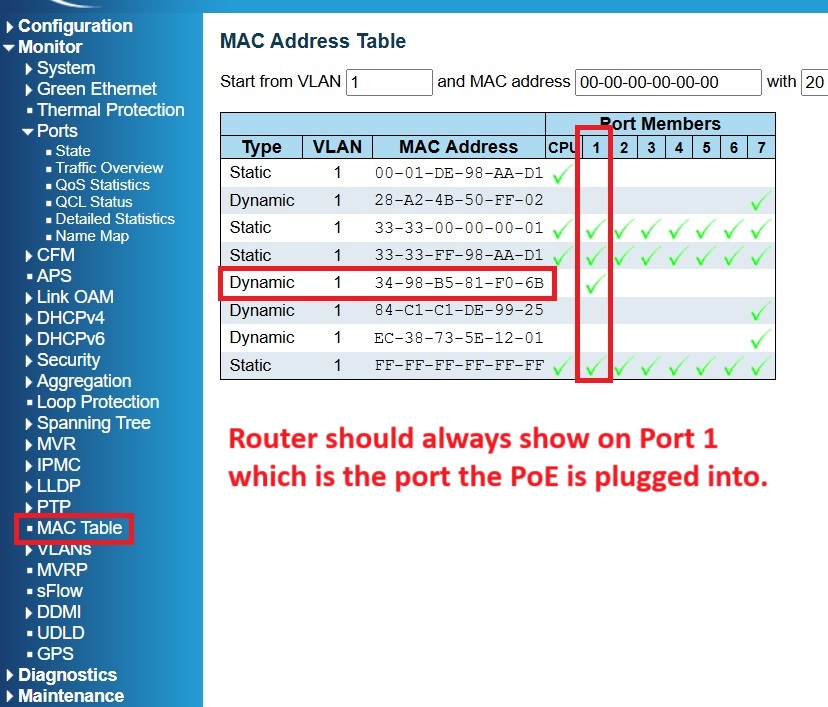
You can verify the MAC address that you see on Port by copying it into Wireshark’s OUI Lookup Table to verify it matches their router manufacturer. If you see multiple MAC addresses that only appear on Port 1 then they may have miscabled their router and they should verify the cable from the PoE injector is plugged into the WAN port of their router rather then a LAN port. Another explanation, especially if they have a mesh system with interchangeable ports is that their router was reset and needs to be set up again.
If you do not see a MAC address or they continue to indicate they have no connection you should have them bypass from the poe injector to a hardwired device to test. Since all Bertram Fiber customers are Option 82 there should be no need to change the equipment on the account to get a connection unless there is a known issue with DHCP relay.
DHCP Relay
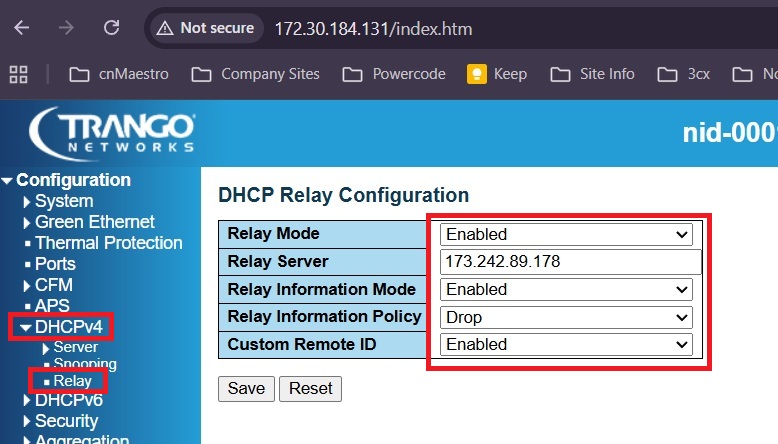
Trango NIDs should automatically be doing DHCP Relay and have Option 82 enabled so that customers don’t need us to update their MAC address when swapping their router. Occasionally, the NIDs do not end up updating the correct file from the FTP server that enables Option 82. If you have a customer whose NID is up, and you see their router in the bridging table, but they indicate they have no internet check the DHCP Relay is Enabled. You can find this under Configuration -> DHCPv4 -> Relay. If it is not enabled, enable it and save, but DO NOT REBOOT the NID (rebooting the NID would cause it to try to pull the file from the FTP server and wipe out the settings).
Remote Reboot

To reboot a Trango NID, first navigate to “Maintenance” and then select “Restart Device”. This will take you to a new page where you must confirm by clicking “Yes” to reboot.