
General Information
Important Fiber Deployment Update: Any DCB customers who get swapped over to Bertram Fiber should replace their managed router with a 3rd party router from the store and return their managed router to the Baileys Harbor office or to the technician when we retrieve their radio. Cambium r195w routers are limited to 100mbps throughput on the WAN port and will severely restrict their fiber speeds.
Cambium routers are dual-band WiFi 5 (802.11ac) routers that were rented to DCB customers from the summer of 2020 until we stopped doing router rentals to new customers in winter of 2024. If a customer’s Cambium router is failing and they are on the router plan for $6.95 we will replace it, either in person in Baileys Harbor or through the mail.
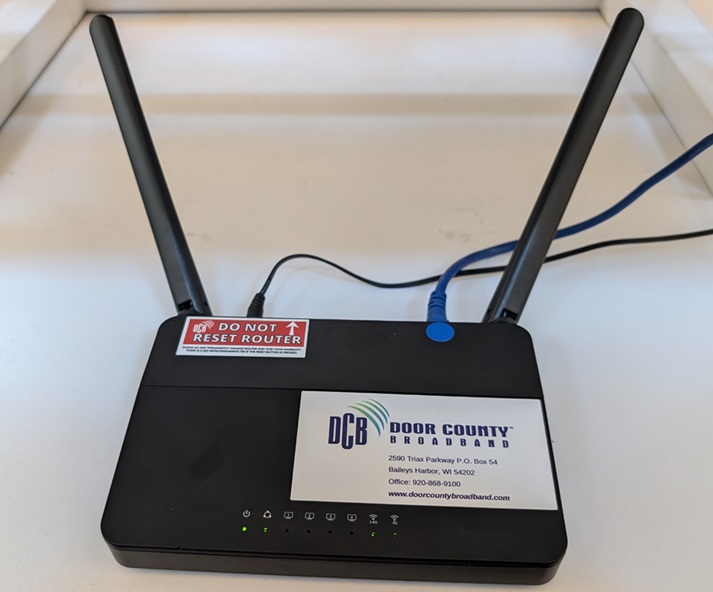
Logging Into OnPrem
Cambium routers should be in OnPrem and it is recommended for troubleshooting or diagnostics purposes that you use that application as it tracks uptime, historical data and shows signal levels.
The login for OnPrem is noc/plut2023
If the Cambium router you are looking at is not in onPrem go to the section below “What To Do If A Router Isn’t In OnPrem” to add it.
OnPrem – Searching For The Router
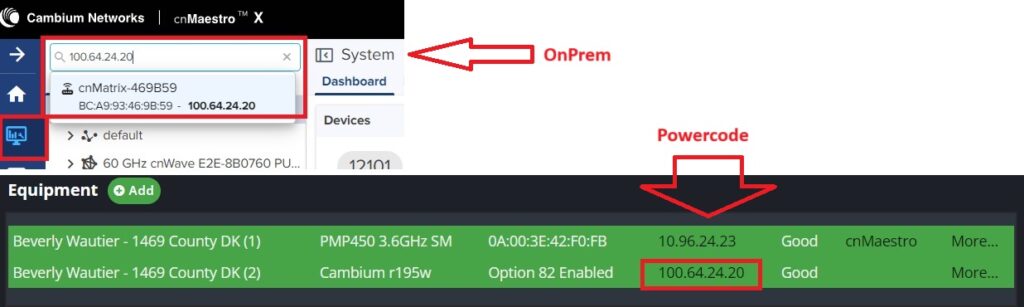
You can search for the router by clicking on the “Monitor” icon on the left side and typing the IP address of the router from Powercode into the search field. The select the router from the drop-down menu (it will either begin with cnMatrix or cnPilot followed by the last 6 digits of the MAC address). Depending on the type of radio it may appear underneath their radio.
OnPrem – Dashboard
The Dashboard will show the time the router has had a connection to onPrem (and likely the internet). This is not necessarily the time since the router was last power cycled or rebooted – if something else has caused their radio or connection to drop that would reset the uptime.

There is a graph that will show the number of devices connected to the WiFi over time as well as the usage over time. In the bottom right it will also show which devices have used the most data recently or over the current uptime of the router.
OnPrem – WiFi Signal
To check the strength of the WiFi signal to a given device you can click on the “Clients” tab. It will default to the Wireless Clients. You can see which band (2.4 or 5GHz) a device is connecting to under band. The signal strength to the device is shown in RSSI. A signal of -70 or better is excellent. -70 to -75 is usually decent and as the signal gets closer to -90 it worsens to the point where it won’t maintain a connection.
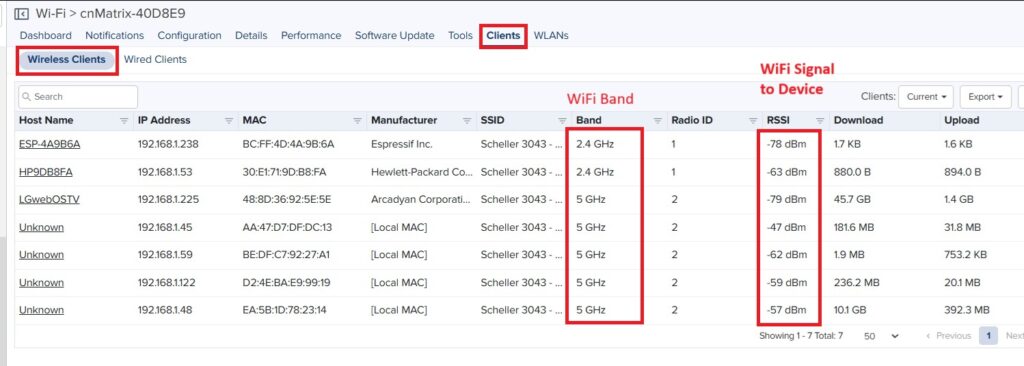
If a device is connecting to the 5GHz at a signal of -80 or worse then it very likely will benefit by moving to the 2.4 GHz wifi which can travel further from the router. Conversely, if someone is connecting a streaming devices such as a Fire stick to the 2G at a signal of -60 then they may benefit by moving it to the less interference prone 5GHz WiFi if their device is dual-band.
OnPrem will attempt to use a MAC lookup to determine the manufacturer of the device, however many devices, especially smartphones may anonymize, or spoof, their MAC address. Connected wireless devices will tend to briefly disappear from OnPrem but will show up again if you toggle between the wired and wireless clients. This DOES NOT mean that the devices are losing wireless connection to the router.
If someone has something hard-wired to the router you can see that by clicking on “Wired Clients” and it will show which LAN port the device is connected to. While onPrem will not do a MAC address lookup on hard-wired devices it can be useful to look up the MAC address of connected devices in Wireshark’s OUI tool to get some idea of what ind of device it might be.
OnPrem – WiFi Scan
It is sometimes necessary to do a WiFi scan to look for evidence of interference or undisclosed wireless extenders or access points. To perform a WiFi Scan click the Tools tab and then select the band you wish to scan (usually 2.4) and click “Start Scan”.
This will look for nearby wireless networks and display their WiFi name (if applicable) and signal strength at the router. It will also show which channel the networks are operating their wifi on. In the example below we see an HP printer broadcasting it’s own wifi right next to the router (Signal 100%). We also see a Netgear Orbi mesh system with multiple nodes, one of which is operating right next to the router.
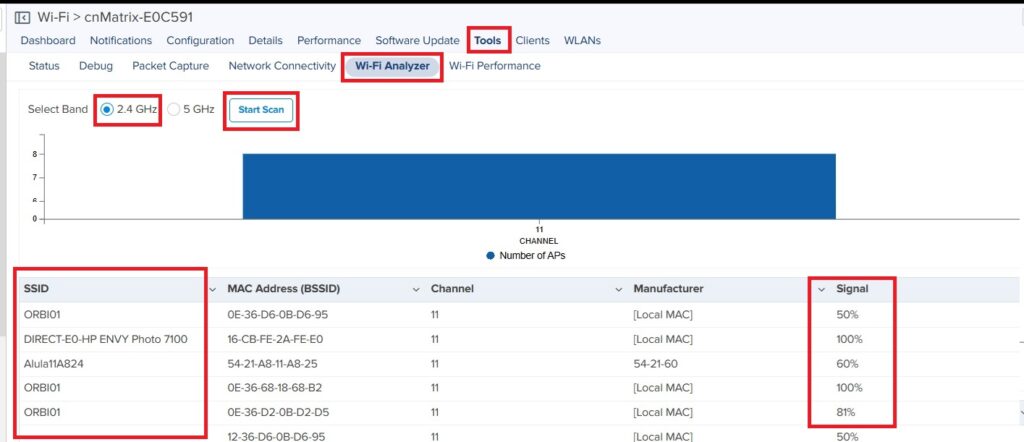
Note that this Orbi is an example of a sub-optimal set up since the Orbi is operating it’s wifi on the same frequency as the managed router and will follow it around as it changes frequencies resulting in them interfering with each other. It is for this reason that we recommend that customers on DCB who need wireless extenders or mesh systems remove and return our managed routers and only use their mesh system, since these are designed to work cooperatively with each other and will actively try to move devices to the strongest node on the mesh system.
OnPrem – Updating Firmware
The current stable firmware version for Cambium routers is 4.8.1. If a customer is experiencing router issues and is on older firmware, especially 4.6 then you should try to update the firmware to 4.8.1-R4. One of the primary issues that can potentially be fixed by this firmware update is the 5GHz WiFi disappearing for no reason.
You should only update the firmware when their connection is otherwise stable. To update the firmware select the Software Update tab. The version should default to 4.8.1-R4 and you can then select “Add Software Job”
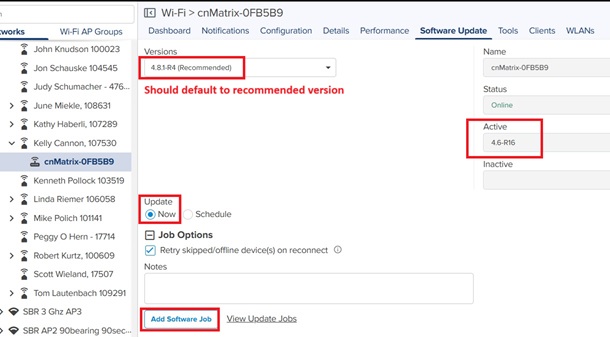
OnPrem will then push out the software update to the router and after the update is complete the router will reboot. This will usually take about 5-6 minutes in total to finish.
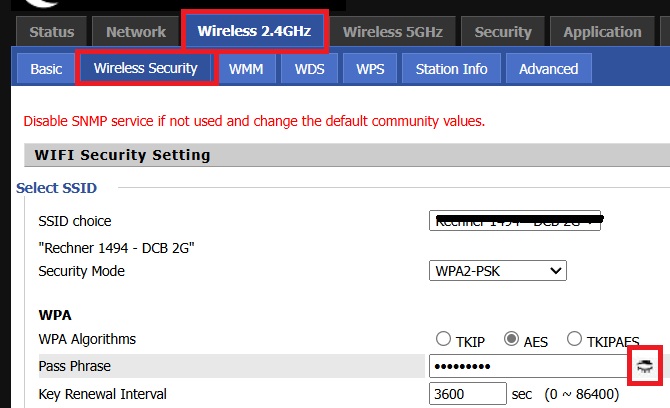
Updating the firmware to 4.8 will permit you to see their wifi password by logging directly into the router and clicking the appropriate tab.
OnPrem – What To Do If Router Isn’t in OnPrem
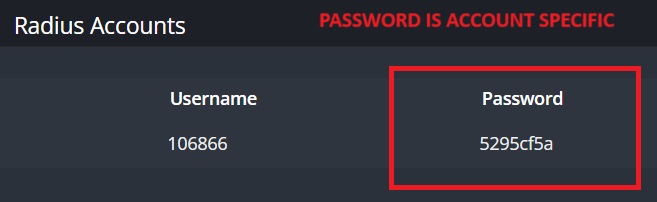
If a DCB Cambium router is not appearing in onPrem, click on the IP address in Powercode and you should get a login screen. The login is the same as any other DCB router. admin/(RADIUS Password) with the RADIUS password being under the Service tab of the account. If that doesn’t work you can try admin/PassPass or adming/passpass
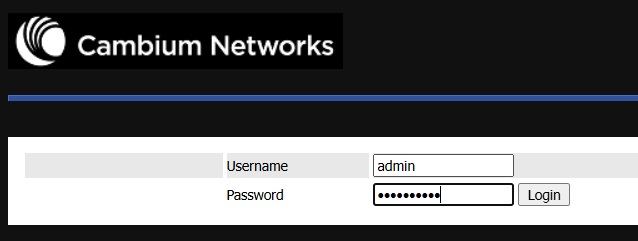
After logging into the router click on Administration and then cnMaestro. If you do not see a message in Connection Status saying “Connected…” in green then you will want to add the following to the page and then click Save.
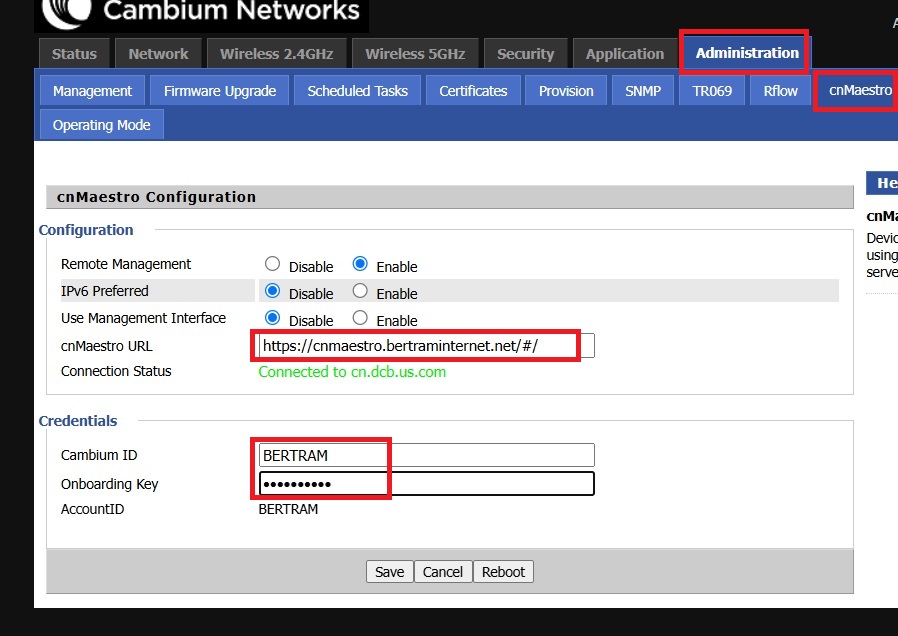
cnMaestro URL: https://cnmaestro.bertraminternet.net/#/
Cambium ID: BERTRAM
Onboarding Key: wingswings
After a minute or to it should attempt to connect the router to onPrem and the router should show up there.
Changing WiFi Password
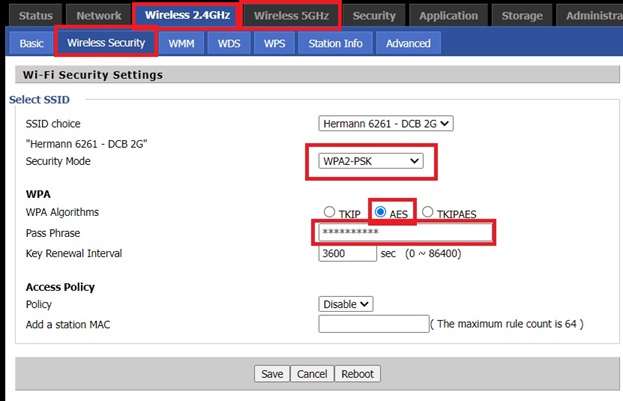
On Cambium routers (like Readynet or Mercury) there are separate tabs for both the 2.4 and 5GHz WiFi networks. Therefore when changing the wifi name or password you need to make changes to both of the tabs. We usually differentiate between the 2.4 and 5Ghz wifi by using “- 2G” and “-5G” at the end of the wifi name. After making the change click “Save” and “Reboot”.
Changing WiFi Channel (Prevent Radio Interference)
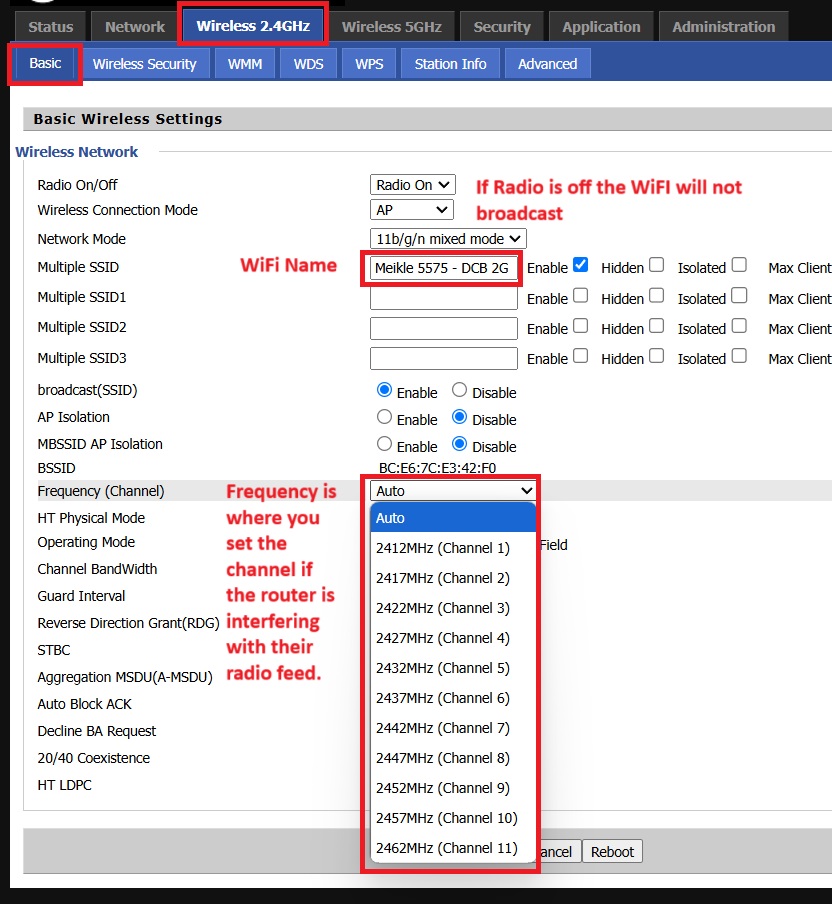
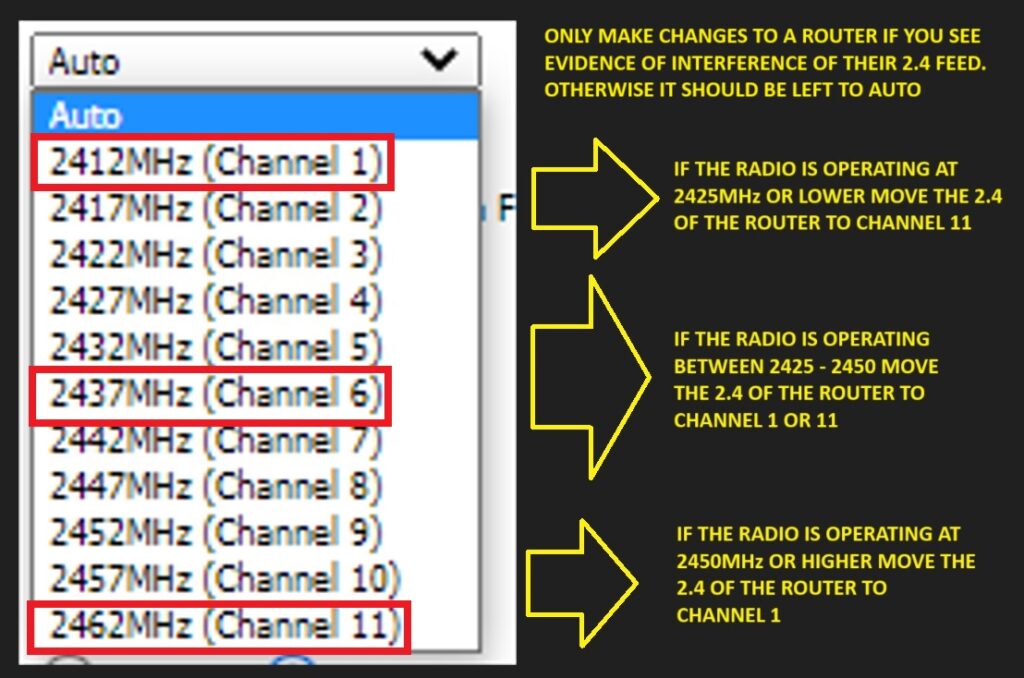
If the customer is getting their internet via a 2.4 radio and you see evidence that their router’s WiFi is interfering with their feed you can change the Frequency that the wifi is operating on from auto to a specific channel.
Use the chart below to determine what channel to move their frequency to.
Other Information
There is no functional difference between a Readynet router and a Cambium r195w router. For this reason, unless we see evidence of an issue we will not swap the router.
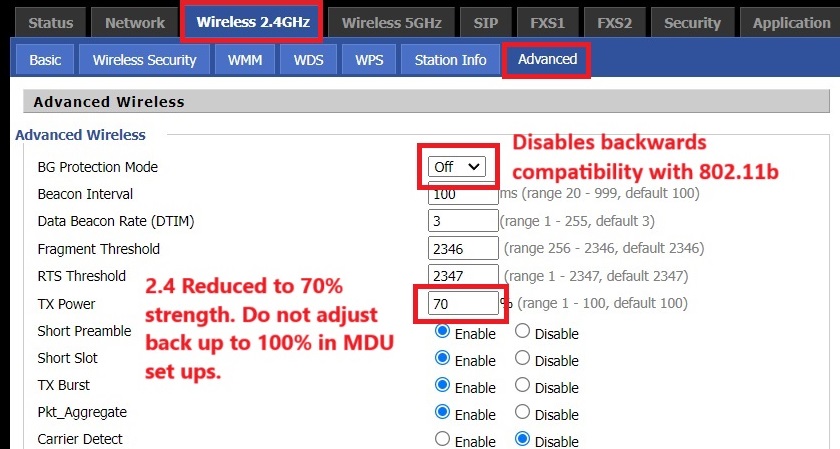
Our default configuration for the Cambium routers reduces the 2.4 WiFi signal to 70% of the max in order to reduce interference (shown below). We also disable backward compatibility with 802.11b (pre-2007 wifi devices) for the same reason. We do not make similar changes to the 5GHz Wifi.
There is a WPS (WiFi Protected Setup) button on the back of the router, however we disable this button as it is a security risk. As a result, customers must use the wifi password in order to connect their devices to the router.