Bertram Internet Mail Settings
Username: Full Email Address
Password: Email Password
POP3 Incoming Mail Server Settings With SSL:
POP3 downloads and deletes emails from the server to the single device/client that is being used to check the email. This makes the email accessible offline to the one device that is used to check it but it will not show up on other devices that are used to check the email. Ensures that you will not run out of disk space on the server.
Server type: POP3
Incoming Mail Server: mail.bertramwireless.com
Username: [Full Email Address]
Password: [Email Password]
SSL / Security: SSL
Authentication: Password
Incoming Port Number: 995
IMAP Incoming Mail Server Settings With SSL:
IMAP synchronizes emails across multiple devices keeping them on the server. This is ideal for checking email on multiple devices. However, this does mean that the emails are unavailable when not connected to the internet. It also makes it more likely to run out of space on the email server which will prevent them from sending or receiving more emails until they have deleted their emails (and emptied the trash).
Server type: IMAP
Incoming Mail Server: mail.bertramwireless.com
Username: [Full Email Address]
Password: [Email Password]
SSL / Security: SSL
Authentication: Password
Incoming Port Number: 993
Outgoing Mail Server Settings With SSL:
Outgoing Mail Server: mail.bertramwireless.com
Username: [Full Email Address]
Password: [Email Password]
SSL / Security: SSL
Authentication: Yes, using logon information – the email address and password
Note: Sometimes presented as ‘My Outgoing Mail Server Requires Authentication’
Outgoing Server Port Number: 465
NConnect.net Email Settings:
Same settings as above but the mail server is mail.nconnect.net
Email Domains That Bertram Hosts
These legacy email domains are ones that do operate on Bertram’s email servers and should be accessible through the Smartermail email portal.
bertramwireless.com
baycomwi.com
dotnet.com
ezwebtech.com
fastbytes.com
globalnet.net
granitewave.com
nconnect.net
Mercury Email Domains
Bertram did NOT acquire Mercury’s email business when we purchased their Wisconsin fixed wireless internet business. Therefore any customer with an email with one of the following domains must call Mercury at 1-888-866-4638 for any questions or issues relating to their email.
excel.net
lsol.net
mercury.net
tm.net
Setting Up Email Forwarding In Smartermail
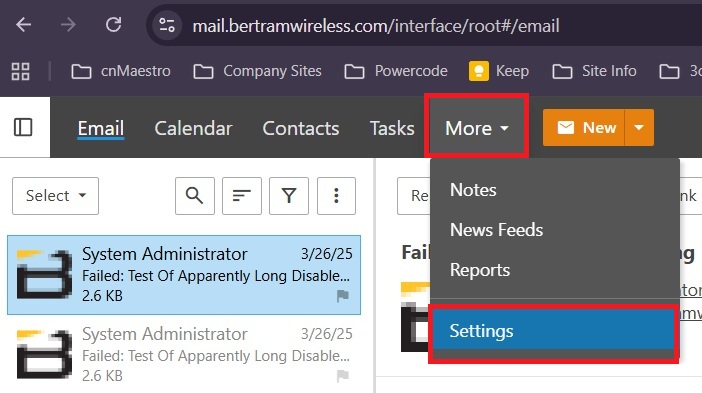
Customers can use Smartermail to set up email forwarding themselves. After logging into the Smartermail portal they should click on the More tab, followed by Settings.
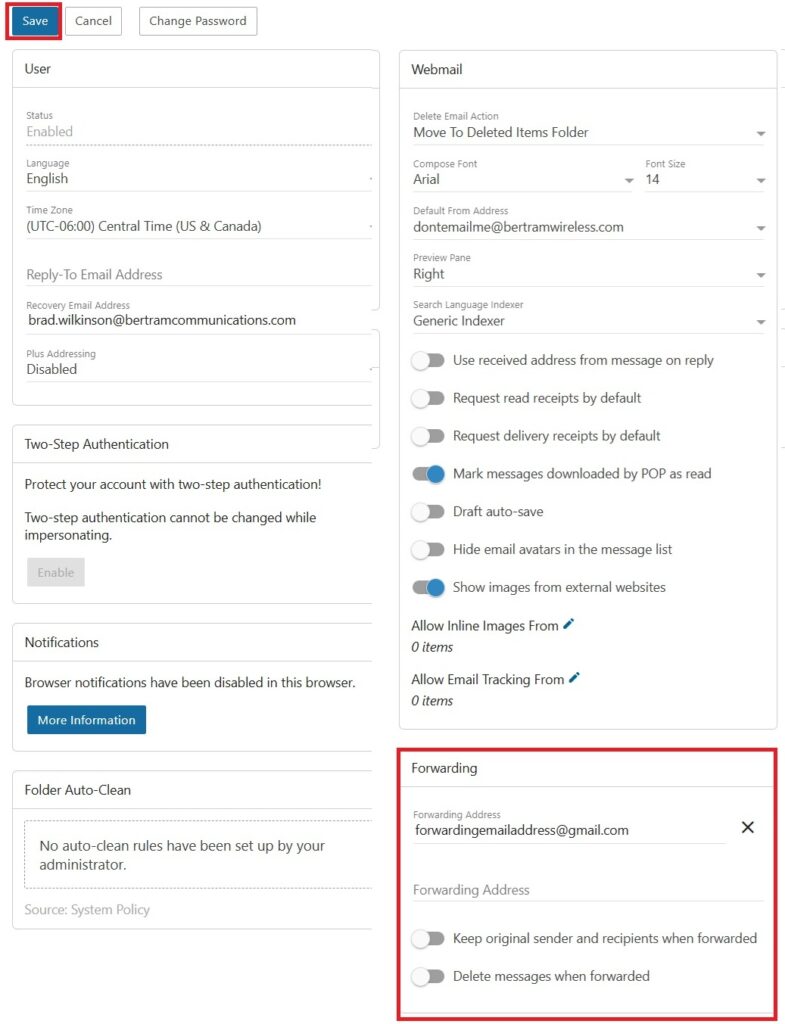
On the following screen the forwarding settings are in the bottom right corner of the screen. They should type in the email address they want their emails forwarded to in the text box. There are 2 additional options that they can toggle on and it is recommended they do so.
“Keep original sender and recipients when forwarded” is recommended since it will allow them to reply back to the original sender. If they don’t check this option and they reply it will instead reply back to their Bertram email address.
“Delete messages when forwarded” is also recommended because if they forward the messages without deleting them eventually their Bertram mailbox will get full and they will stop being able to receive email.
They will then need to click “Save” in the upper left corner to save their changes.