
General Information
Neptune routers are routers that Mercury provided to their customers sometimes with a $5 rental fee. Since Bertram does not provide router rentals that $5 rental fee is treated as a protection plan light for the purposes of any service calls. If a Neptune router fails or is having issues we would recommend replacing it with a dual band 3rd party router from the store. We can not provide a managed replacement for a Neptune router.
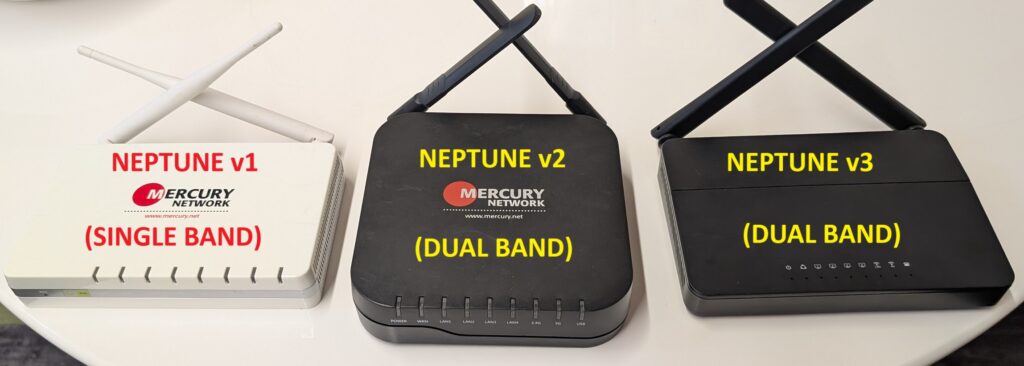
There are 3 versions of Neptune routers. V1 is a single band router. Despite being white and looking like DCB’s dual-band Readynet AC1000 it only broadcasts a 2.4 GHz signal. The Neptune v2 & v3 are dual band routers. The v2, which is more square looks like the DCB Readynet AC1200 routers and the v3 looks like DCB’s Cambium routers.
Login
The login for the Neptune routers should be admin/Neptune99
In order to access the splash screen you need to add :4 for the port (which is done automatically in Powercode when clicking on the IP address). If the router has been reset or defaulted itself the login is admin/admin and would be accessible without the port number.
Main Page & WiFi Info
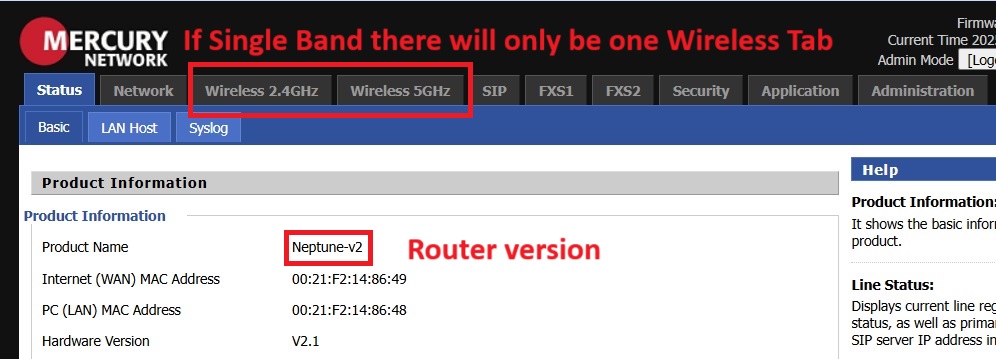
After logging into the router you will come up with the main screen which will show the version of the Neptune router on the top.
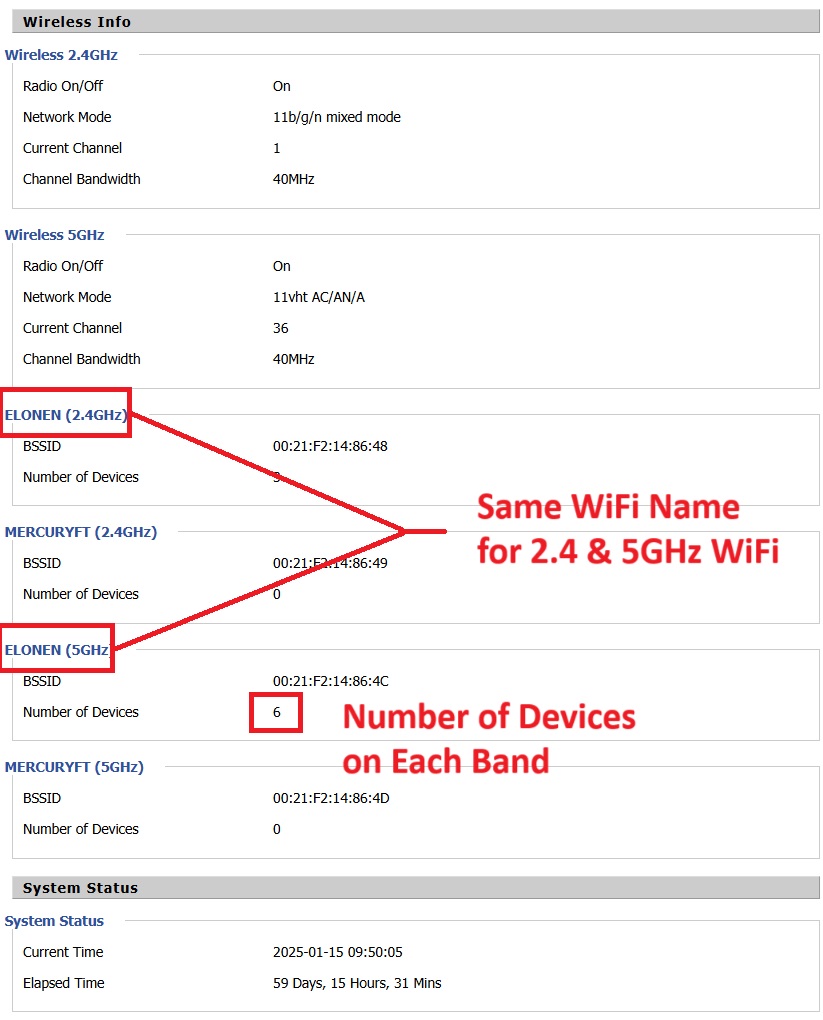
At the bottom of the main page you will see information about the WiFi including the SSID, the number of devices connected to each wifi network and the current channel each of the wifi networks are operating on. Unlike, DCB or XL routers, Mercury routers were set up with the same SSID for both the 2.4 and 5GHz WiFi. If needed you can rename the SSIDs to permit customers to select one over the other (see below). It is usually recommended that you leave the 2G alone and just add a “-5G” to the end of the 5GHz SSID to ensure existing devices remain connected to at least one of the networks.
Connected Devices – LAN Host
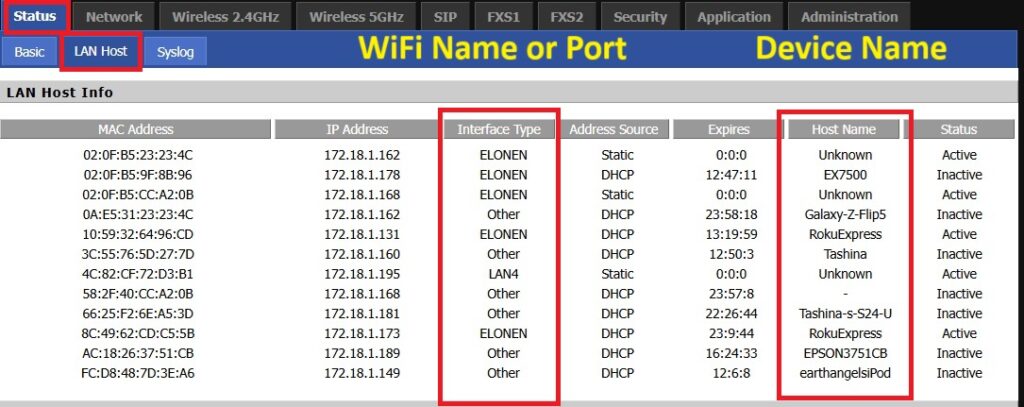
If you click on LAN Host under Interface Type you will see the connected devices and whether they are connected to the wifi or are hardwired to a LAN port. On the right side you will see the Device Name which can be useful for determining what the device is you are looking at. If it is not obvious what the device is you can look up the MAC address using the Wireshark OUI lookup tool.
WiFi Signal to Devices
Checking the wifi signal strength to a particular device on a Mercury router is not the most streamlined or obvious process. You first need to find the MAC address of the device in the LAN Host tab (see above). After identifying the MAC address of the device you want to check, you need to click on the relevant WiFi tab and select Station Info. It will then show the MAC address of connected devices and an MCS value. MCS values differ between 2.4 and 5GHz and a full overview of them is not something that is possible to provide in this limited space.

As MCS levels get closer to 0 the signal is worse. For the Mercury routers, if the MCS level of a give devices shows a 0-5 the signal is likely poor. If the device is connecting to the 5GHz at that low of an MCS level it may be beneficial to move it to the 2.4GHz to see performance improves. 6-11 will generally be okay and a higher value than 11 (for example 15) usually should indicate a very strong signal and data rate. In the example above the 2 devices with an MCS of 7 have a decent signal and the 3rd device with an MCS of 15 has an excellent signal. A table of 802.11ac HT MCS data rates is available here.
WiFi Settings and Passwords
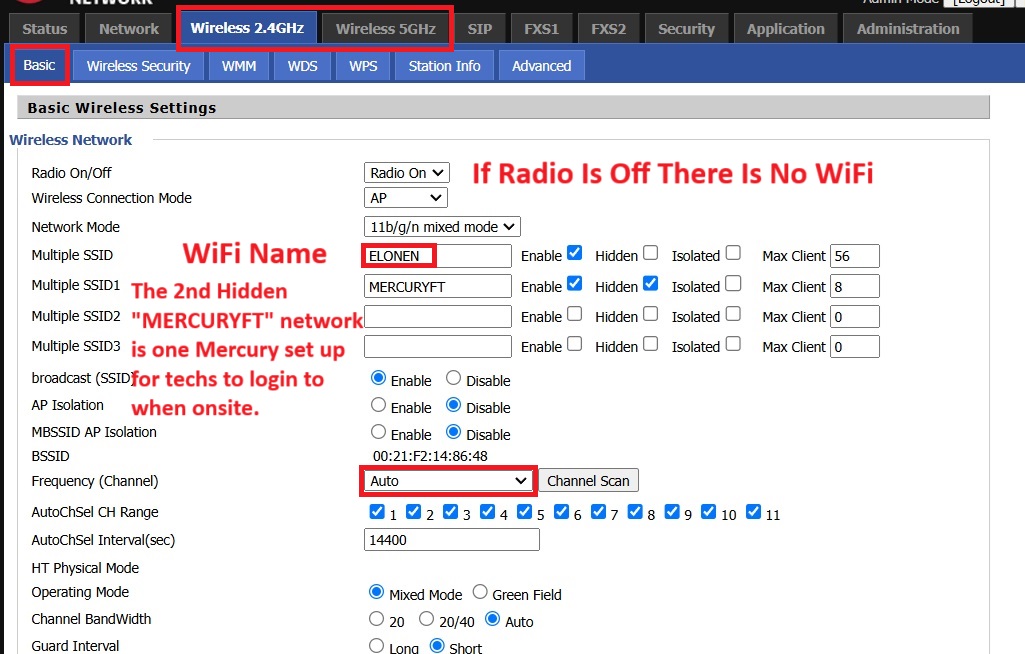
On Neptune routers that are dual band there are separate tabs for the 2.4 and 5GHz wifi networks. Therefore, when changing the WiFi name or password you need to make changes to both of the tabs. Mercury did not reduce the channel widths to 20MHz like DCB, but if you do see evidence of interference you can reduce the channel width to 20. There is a hidden “MERCURYFT” network that Mercury installers used to connect to routers. Bertram does not use this.
Mercury used the same SSID for the 2.4 and 5GHz WiFi so it is not possible to force a device to use one over the other. In certain circumstances you can change the WiFI name of the 5GHz to have a 5G at the end in order to permit the customer to make sure their device is connecting to the intended band.

Neptune router wifi passwords were based on the number in the SSID then their account number and then the number in the SSID again. If the SSID was MERCURY10500 with an account # of 65449 the WiFi password would be 105006544910500
If the SSID does not have MERCURY in it then it was changed at some point and we do not have access to it. If that does not work the only thing we can do is set a new password – we have no way to see what the old password was.
WiFi Scan
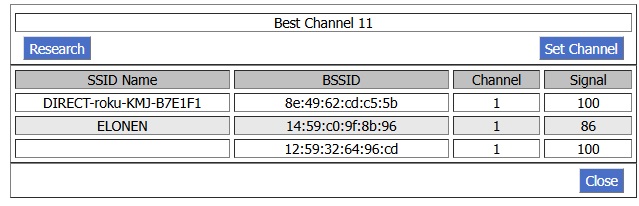
It is sometimes necessary to do a WiFi scan to look for evidence of interference from neighboring routers or access points. To perform a Channel Scan click the Channel scan on the appropriate tab (2.4 or 5). This will scan to show any neighboring WiFi networks it can see – including from wireless extenders – which might contribute to localized interference.
In the example below we see a “DIRECT-roku…” SSID near the router which is broadcasting a signal right next to the router which is normal and likely just for a remote to connect to their Roku streaming device. But we also see a 2nd device re-broadcasting their ELONEN SSID at 86% signal strength which is sub-optimal since it is pretty close to the router and very possibly contributing to interference. Any SSIDs that say -ext would also indicate a wireless extender. You can again use the Wireshark OUI tool to try to identify what is broadcasting if it is unclear.
Other Information
It is generally recommended that if a customer is having issues that appear to be linked to their Neptune router that they replace it with a 3rd party dual band router. This is doubly so for the single band Neptune v1 routers.