General Information
IMPORTANT FIBER DEPLOYMENT UPDATE: Any DCB customers who get swapped over to Bertram Fiber should replace their managed router with a 3rd party router from the store and return their managed router to the Baileys Harbor office or to the Bertram technician when we retrieve their radio. Readynet routers are limited to 100mbps throughput on the WAN port and would severely restrict their fiber speeds.
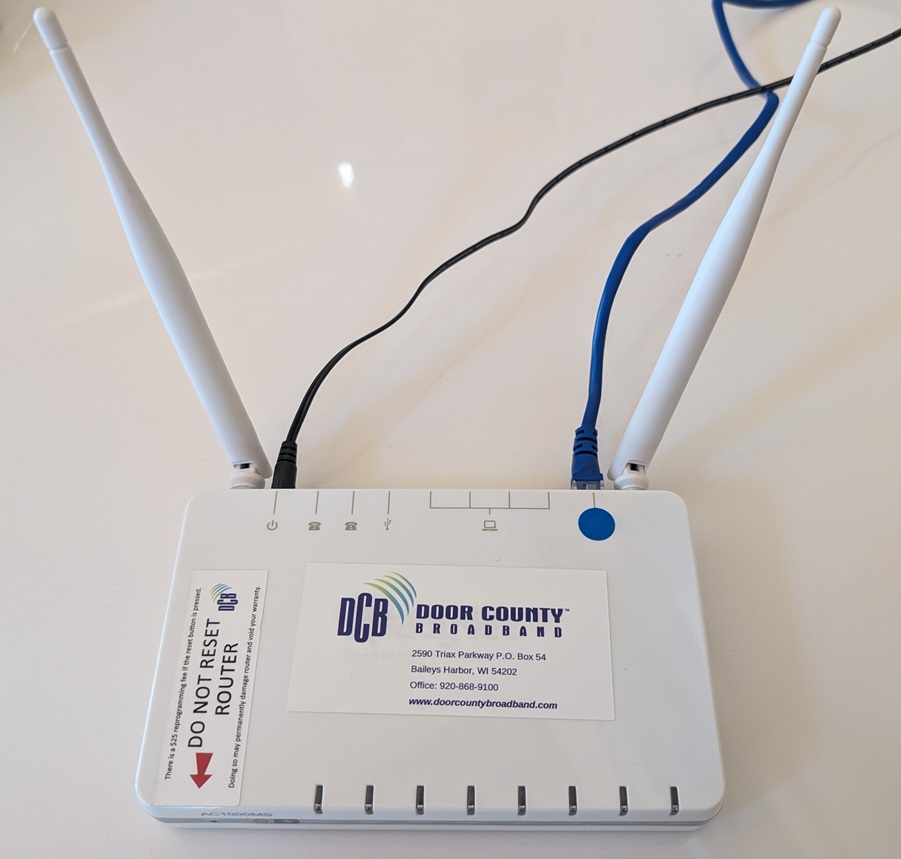
Readynet Routers are dual-band WiFi 5 (802.11ac) routers that were rented to DCB customers from 2018 to the summer of 2020 when we began deploying Cambium routers to new customers. There was a brief period in 2018 during which customers were sold the router outright with a 1 year warranty. If a customer’s Readynet router is failing and they are on the router plan for $6.95 a month we will replace it, either in person in Baileys Harbor or through the mail. If they are not on the router plan then they would need to replace the router with a 3rd party router from the store.
They came in 2 versions, the Readynet AC1000M/1000MS which is white and the Readynet AC1200 which is black and was only deployed for a brief period in 2020 during Covid. The difference between the M and MS versions is that the MS version has 2 extra RJ11 ports for VoIP phones which are not used. There were some issues with the AC1200 model and if a customer on the router rental program is experiencing issues we will replace it (though we should still diagnose the issue).
There is a reset button on the front of the AC1000 model and the back of the AC1200 model which we normally cover with a silver tamper seal. If a customer resets their router there is nothing we can do remotely to make it accessible to us or set it up again. In the past we generally charged a $25 reprogramming fee if a customer reset their router, though that is usually waived in extenuating circumstances.
Readynet AC1000MS
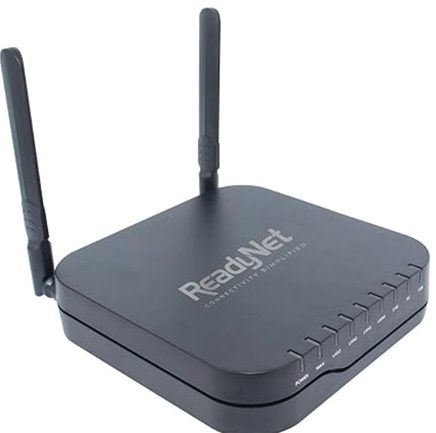
Readynet AC1200 (the logo would be covered by a sticker)
Login
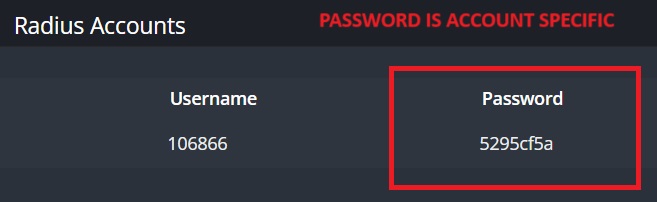
Login is the same as any other DCB router. admin/(RADIUS Password) with the RADIUS password being under the Services tab of the account. If that doesn’t work you can try admin/PassPass or admin/passpass.
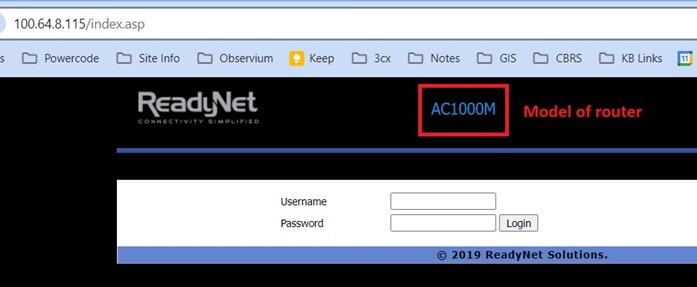
Main Page & WiFi Info
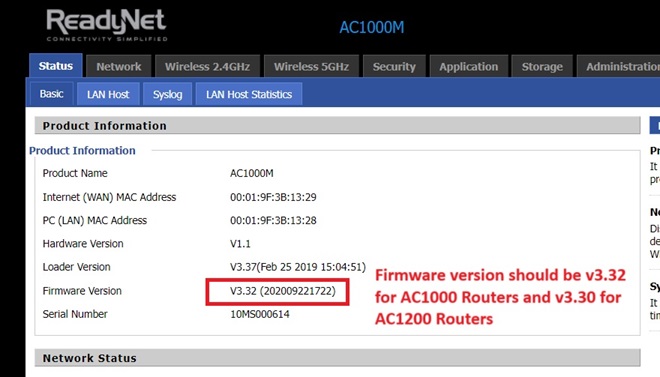
After logging into the router, you will come up with the main screen. Check the firmware version. On Readynet AC1000 models it should be v3.32 with a date of (20200922…) This firmware version has a fix for the 5GHz wifi cutting out occasionally. If they are on older firmware see the section below on how to update the firmware on their router. There is no comparable fix for AC1200 routers so if a customer has one of these and are having issues with the 5G WiFi cutting out we would want to replace their router.
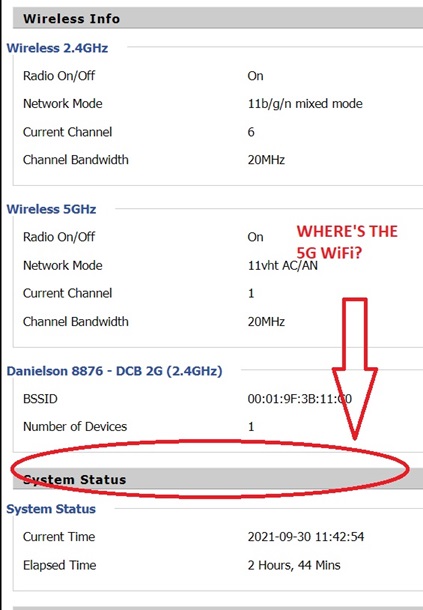
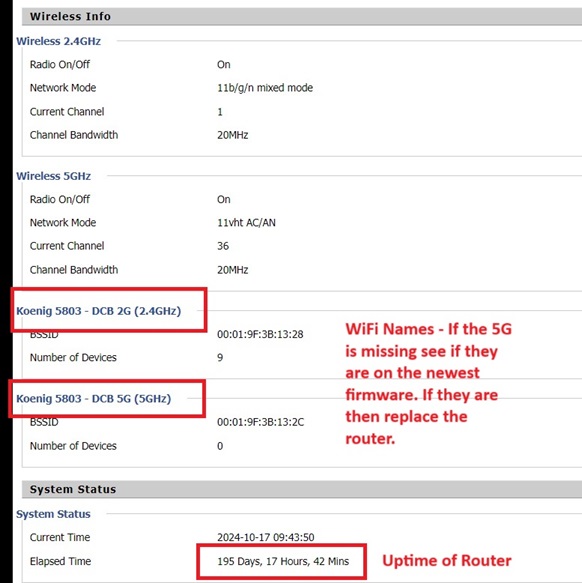
At the bottom of the main page you will see information about the WiFi including the SSID, the number of devices connected to each wifi network, and the current channel each of the wifi networks are operating on. If you do not see a 5GHz wifi network make sure the firmware is up to date. If it is, but the 5G is not shown then we would want to replace the router.
You will also see the overall uptime of the router since it was last power cycled.
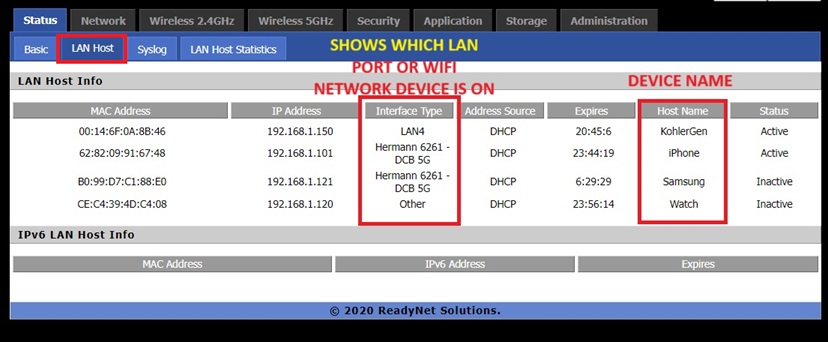
Connected Devices – LAN Host
If you click on LAN Host you will see the connected devices and whether they are connected to the wifi or are hardwired to a LAN port. On the right side you will see the Device Name which can be useful for determining what the device is you are looking at. If if it not obvious what the device is you can look up the MAC address using the Wireshark OUI lookup tool.
WiFi Settings
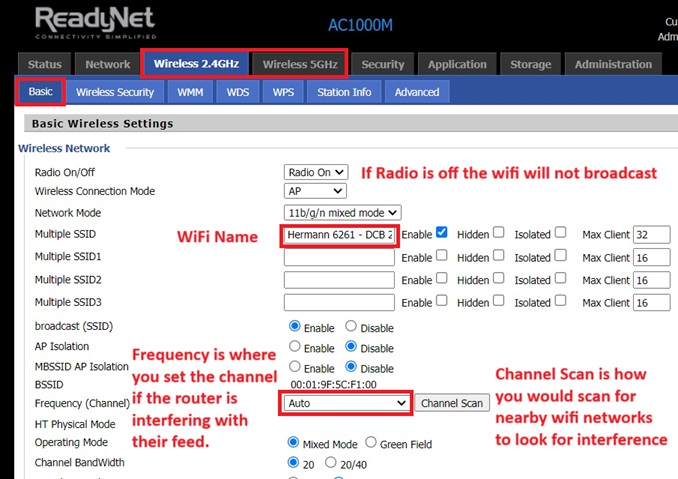
On Readynet routers there are separate tabs for both the 2.4 and 5GHz wifi networks (this is identical to Cambium routers or Neptune routers on Bertram). Therefore when changing the wifi name or password you need to make changes to both of the tabs. We do use 20MHz channel widths on our managed routers to reduce the potential for interference.
On DCB we usually differentiate between the 2.4 and 5GHz wifi by using “- DCB 2G” and “- DCB 5G” at the end of the wifi name. In some cases, if a customer came from a (single-band) AirRouter we just copied the “- DCB” that was previously on the AirRouter for the 2.4 wifi to make it easier for their devices to automatically connect.
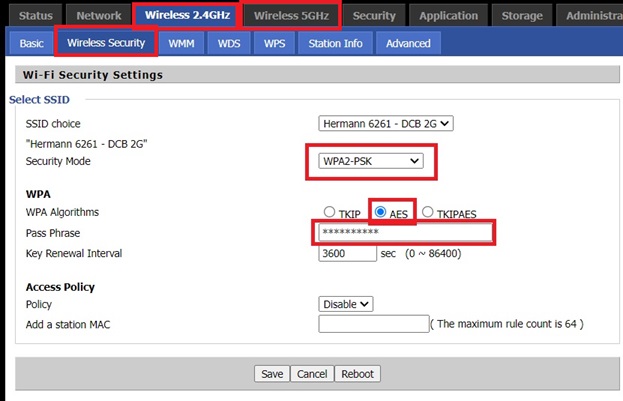
You can change or update the wifi password by selecting the “Wireless Security” tab. You would want to select “WPA2-PSK”, AES algorithm, and the Pass Phrase is where you set the password. Unless there is a record of it on their account we do not usually know what their wifi password is. In that case if they have forgotten it we will have to reset it.
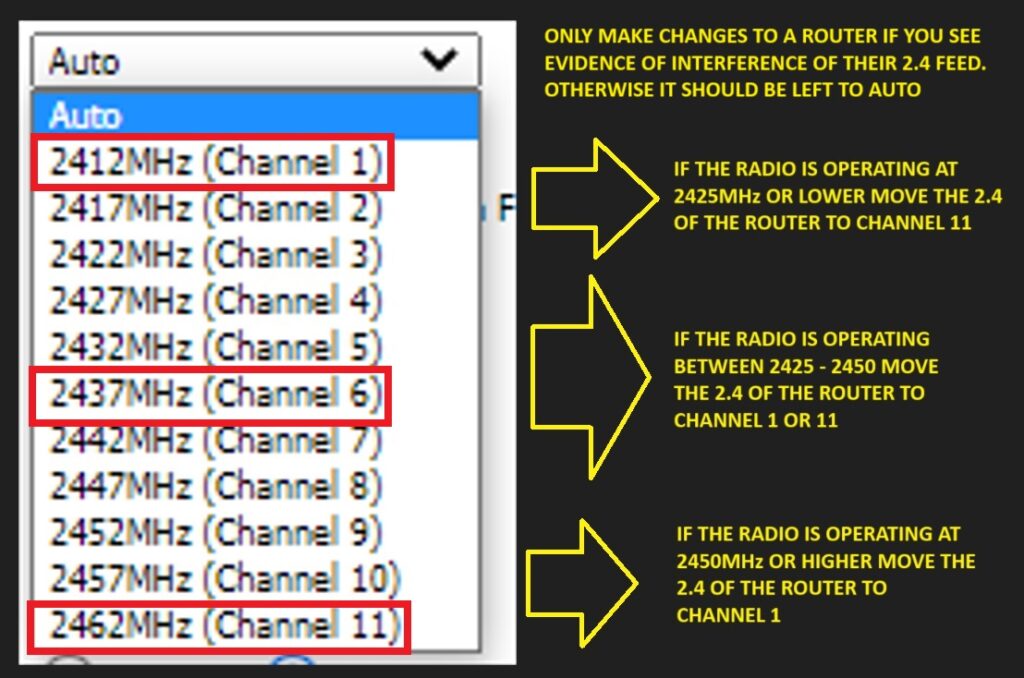
If the customer is getting their internet via a 2.4 radio and you see evidence that their router’s WiFi is interfering with their feed you can change the Frequency that the WiFi is operating on from auto to a specific channel. Use the chart below to determine what channel to move it to.
WiFi Scan
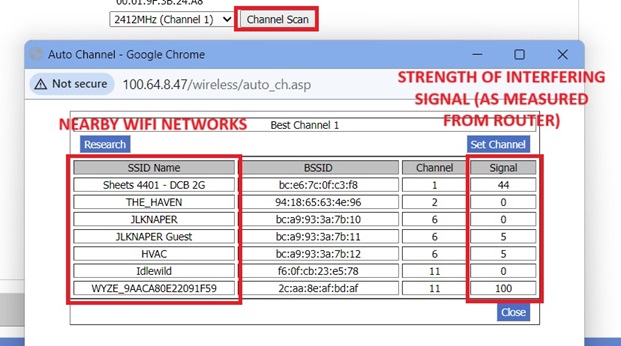
It is sometimes necessary to do a WiFi scan to look for evidence of interference from neighboring routers or access points. Especially in MDU (Multi-Dwelling Unit) situations such as apartment complexes or condominiums this interference can be considerable and is why we especially recommend connecting to 5GHz WiFi. To perform a 2.4 WiFI Scan on a Readynet router select “Channel Scan” from the Wireless 2.4 GHz tab. This will perform a scan to show any neighboring 2.4 WiFi networks it can see – including from wireless extenders – which might contribute to localized interference. You can do the same with 5GHz on that tab but it is usually not necessary.
In the example below we see a “WYZE…”” SSID from a camera that has a signal of 100 which means it is operating RIGHT next to the router. We see a neighbor’s wifi (Sheets 4401…) operating at a 44 signal and then a couple other wifi networks at a signal of 0 or 5 which would be at the edge of the range. Any SSIDs that say -ext would indicate they are a wireless extender hooked into another router. You can again use the Wireshark OUI tool to try to identify what is broadcasting the SSID if it is not clear. Smart Home devices such a Rokus, smart speakers and satellite TV receivers will often also broadcast their own SSID for the purposes of communicating between devices.
WiFi Signal to Devices
Checking the wifi signal strength to a particular device on a Readynet router is not the most streamlined or obvious process. You first need to find the MAC address of the device in the LAN Hosts tab. Below we see 2 such devices on the 5GHz wifi of the router.
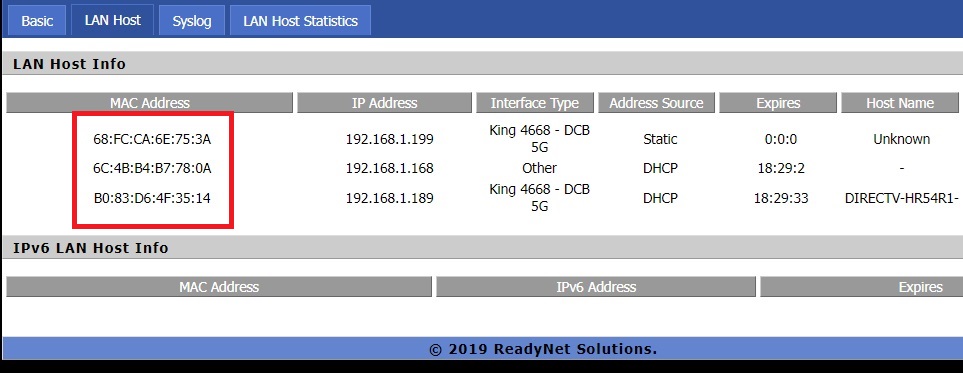
After identifying the MAC address of the device you want to check, you need to click on the relevant WiFi tab and select Station Info. It will then show the MAC address of connected devices and an MCS value. MCS values differ between 802.11ax (WiFi 6) to 802.11ac (WiFi 5) and a full overview of them is not something that is possible to provide in this limited space.
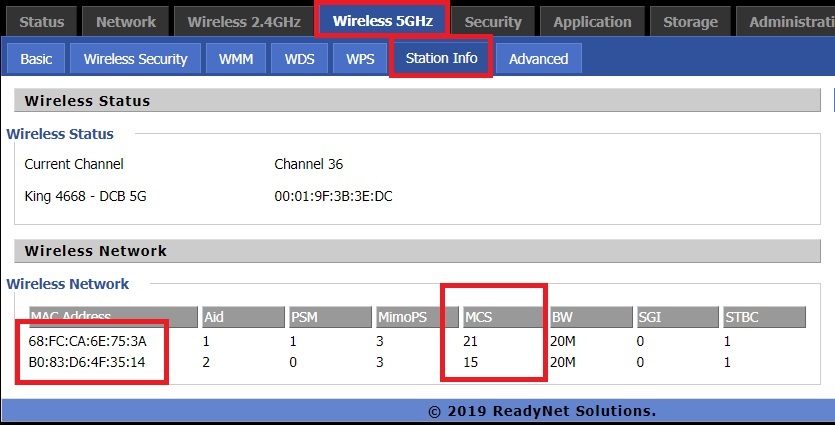
As MCS levels get closer to 0 the signal is worse. For the Readynet routers, if the MCS level of a given device shows a 0-5 the signal is likely poor. If the device is connected to the 5Ghz at that low of an MCS level it may be beneficial to move it to the 2G to see if it improves. 6-11 will generally be okay and a higher value than 11 (for example 15) usually should indicate a relatively strong signal and data rate. In the example above both devices are showing a strong data rate of 21 and 15, respectively. A table of 802.11ac HT MCS data rates is available here.
Updating Firmware
If a Readynet router is on old firmware then it should be updated as long as the connection is stable. You can download the latest firmware for the Readynet AC1000 from here. Grab the most recent 09/22/20 v3.32 firmware to your computer. Then click on the Administration tab, followed by the Firmware Upgrade tab. Choose the file and click “Upgrade”
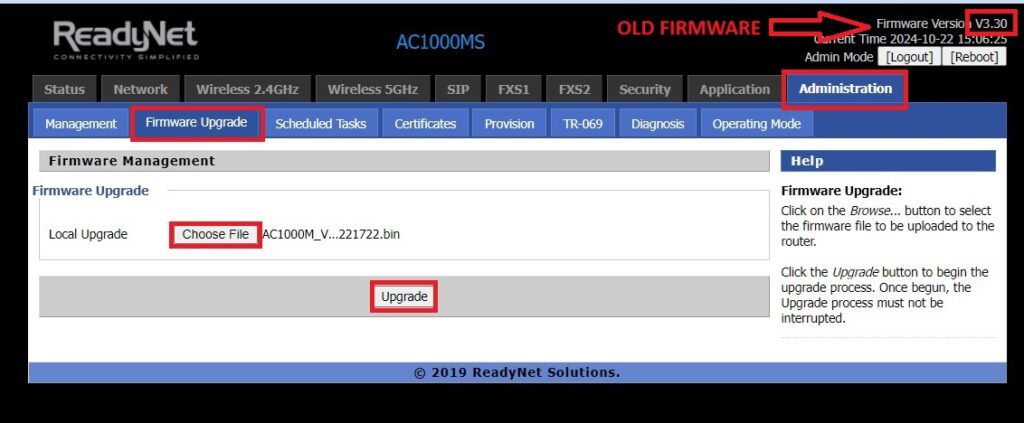
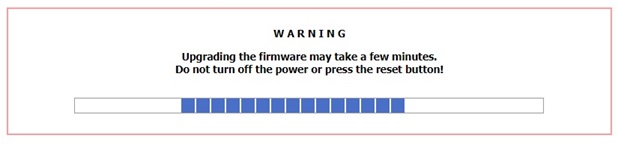
The router will begin updating the firmware and after it finishes it will reboot the router.
Other Information
There is no functional difference between a Readynet router and a Cambium r195w router. For this reason, unless we see evidence of an issue we will not swap the router.
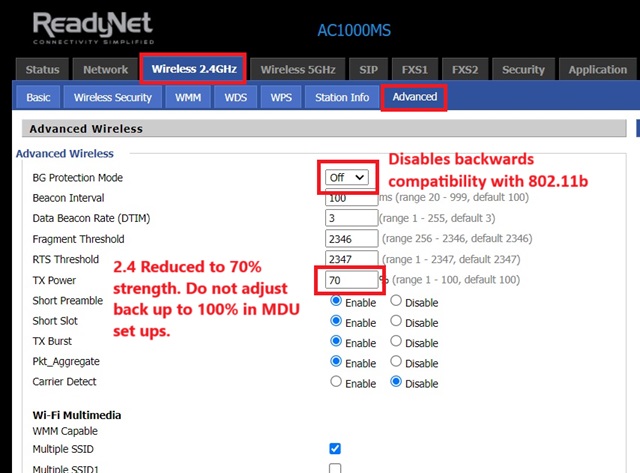
Our default configuration for the Readynet routers in MDUs reduces the 2.4 WiFi signal to 70% of the max in order to reduce interference (shown below). We also disable backwards compatibility with 802.11b (pre-2007 wifi devices) for the same reason. We do not make similar changes to the 5GHz Wifi.
Here is an example, below, of when the 5GHz wifi is missing on the router. As noted above, if they are on old firmware this glitch can usually be resolved by updating it.