
Adding A Router To a Customer’s Account
When replacing a 3rd party router it is often necessary to update the MAC address of the router listed under the equipment on their account. However, if the router is listed as “Option 82” (DCB/Bertram fiber) or if their radio is NATted (common on Bertram) then it is not necessary to update the router’s MAC address. Do not make changes to the customer equipment in either of these cases or you may end up needing to re-set it up.


Otherwise, when updating the MAC address of a router on a customer with a bridged radio it is important to match the IP pool with the IP pool of the radio in order for them to get a connection. The radio’s IP pool will usually say <<SITE NAME>> CPE Management while the router IP pool will say <<SITE NAME>> Customer DHCP. It is also important to use the MAC address that shows up in the radio’s bridging table which is the WAN MAC address of the router, NOT the MAC address that is on the bottom label of the router which is usually the LAN MAC address.
Managed Routers (DCB, XL, former Mercury)
Logins
DCB – admin/”RADIUS Password” or admin/PassPass
XL – xltech/mkvsdcauisbest
Mercury (Bertram) – admin/Neptune99
Door County Broadband – DCB no longer provides router plan routers to new customers, but does replace malfunctioning routers for existing router plan customers. If a customer has a Cambium r195w or a Readynet router and is paying for the $6.95 a month router plan then we will replace it if we determine it is faulty or damaged. They can either stop by the office in Baileys Harbor to pick up the replacement after we have confirmed it is faulty and programmed the replacement or it can be shipped out to them via the USPS (though there have been increasing delays with this). Please get their desired WiFi password and let Brad know to get one ready for them and confirm office availability.
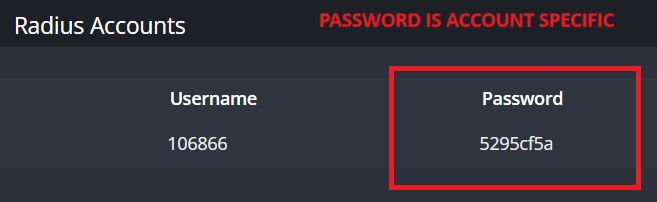
The login for a DCB router is admin and the password which is customer specific can be found by clicking on the Services tab of their account and looking under “Radius Accounts”. If there is no password there or the password doesn’t work you can attempt to use PassPass for the password instead.
DCB usually differentiates between the 2 WiFi networks by using “DCB 2G” and “DCB 5G” at the end of their WiFi name. Cambium routers can also be managed via onPrem.
Many customers on DCB have an old pre-2019 single band router called an AirRouter or AirRouter HP. While they are listed as managed routers we do not officially support them and recommend customers replace them with a 3rd party router if they are having issues. Customers with an AirRouter HP have an extra PoE injector powering their router which must be removed before plugging in a replacement router.
XL Broadband – XL Broadband has many customers using their managed Calix routers. For those customers with Calix routers you can log in to them using the standard xltech/mkvsdcauisbest login. If we determine a router is faulty we can do a service call to replace their router. There is no charge XL differentiates between the 2G and 5G wifi networks by adding “5G” to the beginning of the wifi name.for that WiFi band. By default XL routers are accessible via port 8443 (which is automatically appended when clicking on the link in Powercode) but if that doesn’t work you can try port 8080
Former Mercury (Bertram) – Many Mercury customers have a Neptune router as their managed router. Bertram does not provide managed routers and while we will do basic troubleshooting, if we determine it is faulty or failing they would need to replace their Neptune router with a 3rd party router from the store. Neptune router were available in 3 versions and use the same interface as Cambium or Readynet routers on DCB. The username and password is admin/Neptune99
Mercury routers are accessible via port 4 which is automatically appended when clicking on the link in Powercode. If a Mercury router gets reset it will default to a login of admin/admin (usually without the port)
Neptune v3 routers are dual band while v1 and v2 routers are single band.
Setting Up A 3rd Party Router
Some routers can be configured by hardwiring or connecting a device to the wifi and using a web browser to bring up the default IP address of the router in order to set them up.However, most modern router manufacturers either require or recommend the use of a smartphone app to set up the router. The customer will need to download this app from the App Store (iPhone) or Google Play store (Android) and install it on their phone.
They will then connect their smartphone to the wifi of the router, sometimes through the use of a QR code on the bottom of the router and use the app to begin setting up their router. Unless a customer is paying for a Static IP address, all Bertram customers should be connecting with DHCP. The chart below lists the most common routers, the app used to set them up and what terminology they use for DHCP.
You can refer to the Router Emulator KB Article for resources with setting up a 3rd party router.
| Router Manufacturer | Smartphone App | Default IP Address (If No App) | Default Username | Default Password | WAN Connection Type (DHCP) | Support Link |
| TP-Link | Tether | 192.168.0.1 or 192.168.1.1 | admin | admin | Dynamic IP | Link |
| TP-Link Deco (Mesh) | Deco | App Only | N/A | N/A | Dynamic IP | Link |
| Netgear | Nighthawk | 192.168.1.1 | admin | password | “Does your internet connection require a login?” Select No | Link |
| Netgear Orbi (Mesh) | Netgear Orbi | App Only | admin | N/A | “Does your internet connection require a login?” Select No | Link |
| Asus | Asus Router | 192.168.1.1 | admin | admin | Automatic IP | Link |
| Linksys | Linksys | 192.168.1.1 (Velop Mesh is app only) | admin | admin | Automatic Configuration – DHCP | Link |
| Google Nest | Google Home | App Only (Requires Google Account) | N/A | N/A | DHCP | Link |
| eero | eero wifi system | App Only (Requires Amazon Account) | N/A | N/A | DHCP | Link |