
Login
Log in using your provided username or email address and your password.
Calling Out
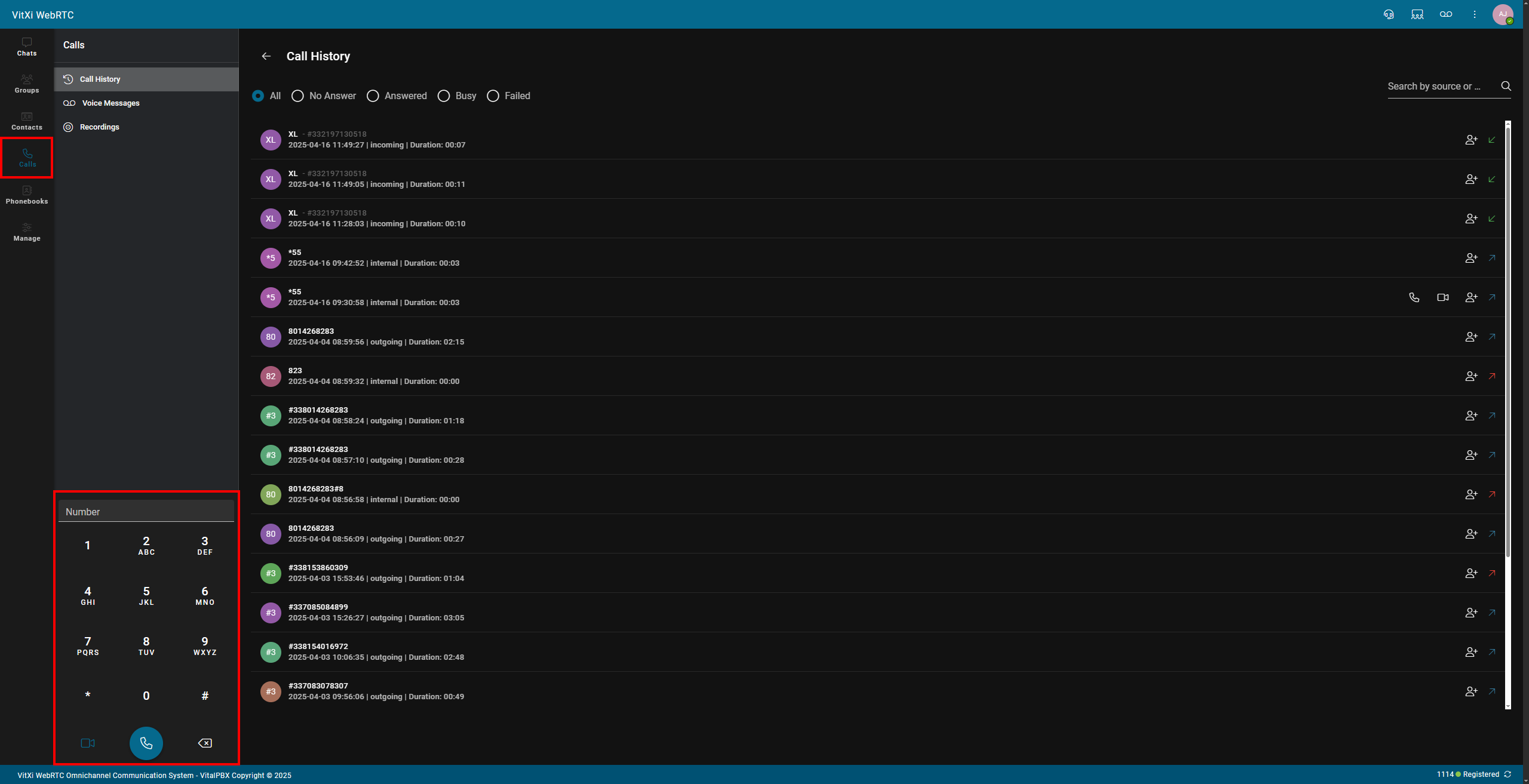
To make a call, navigate to Calls on the top left-hand side. From this page on the bottom left, you should be able to dial out.
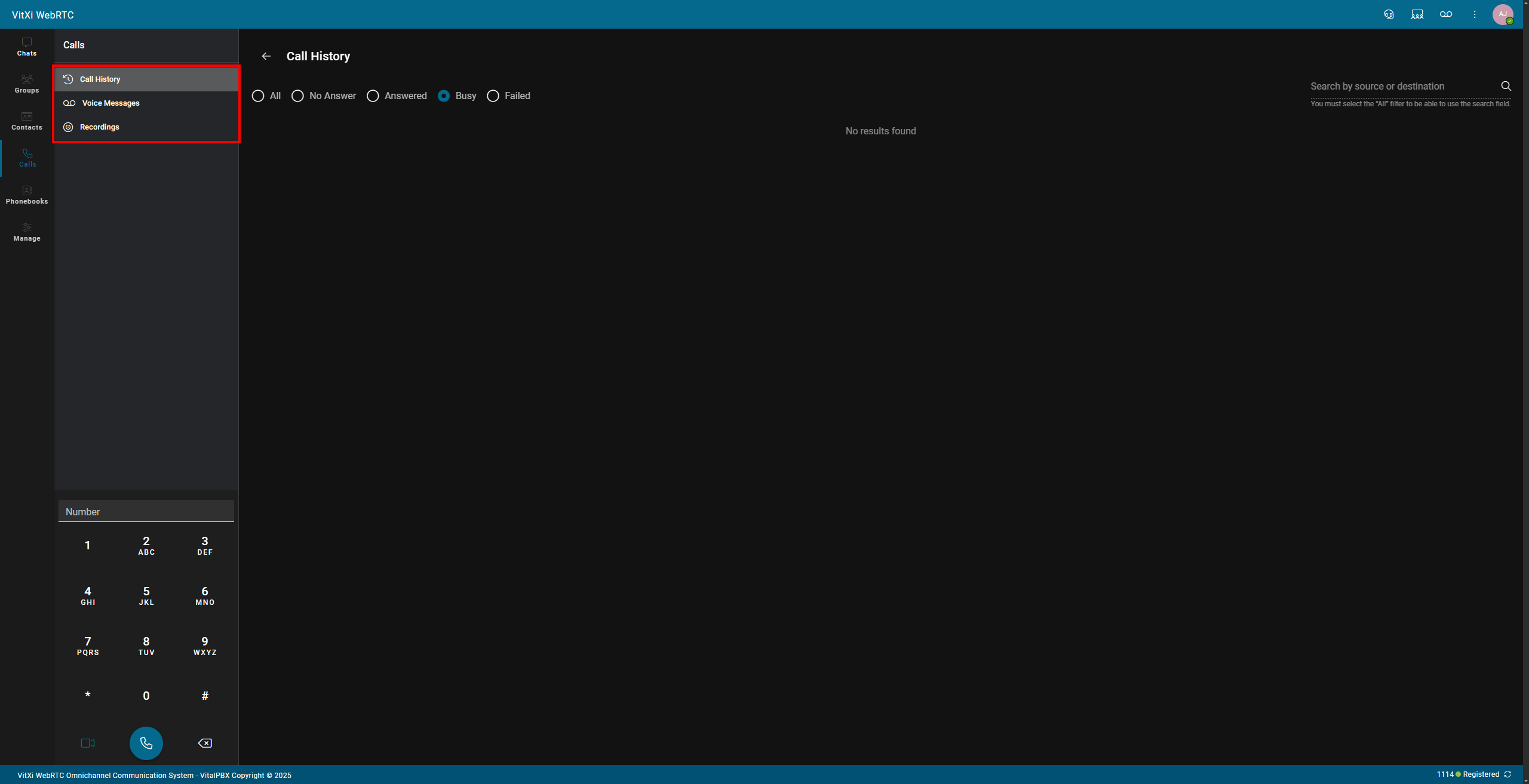
Through this page, you can also view your call history, voicemail, and previous phone call recordings.
Answering A Call
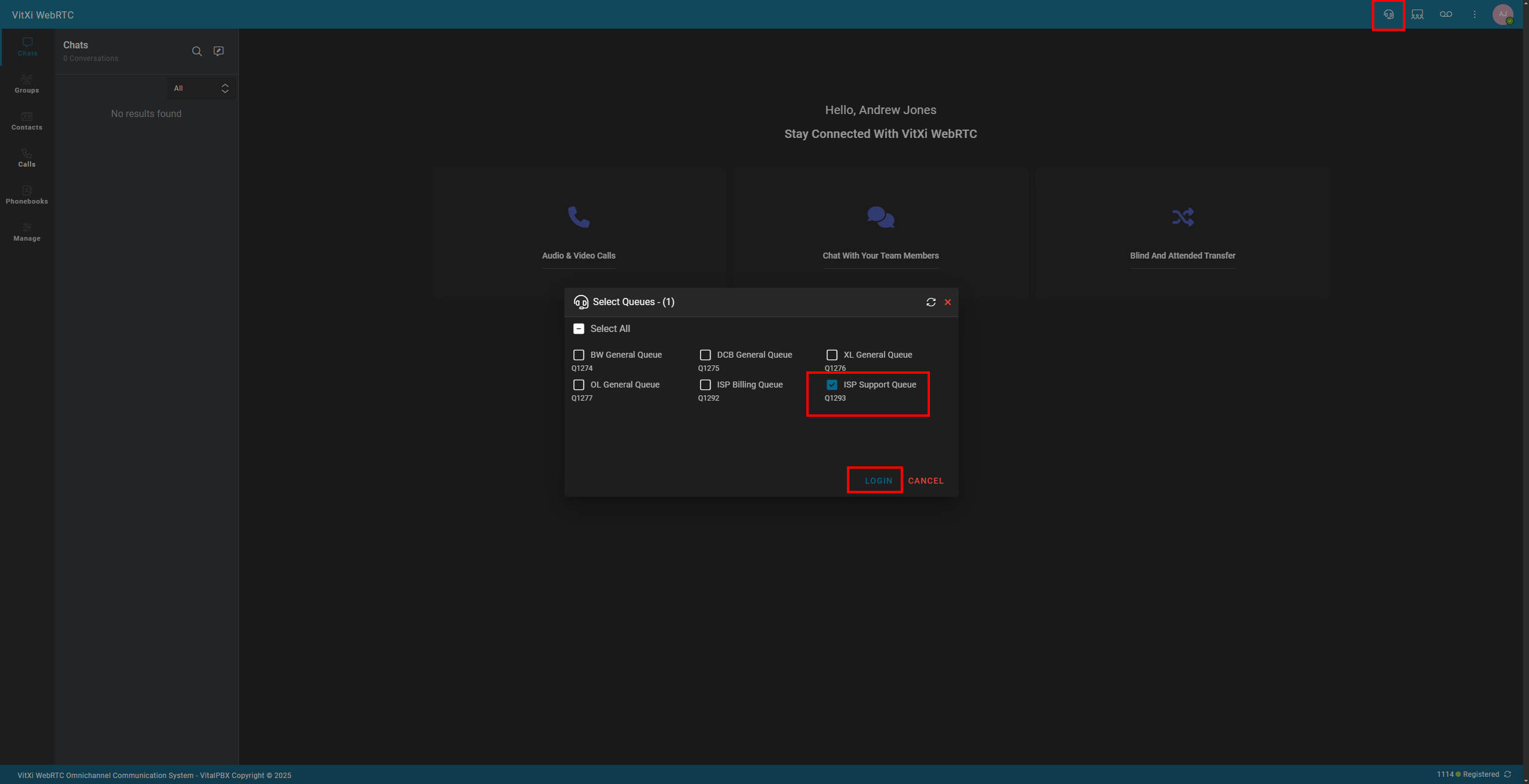
To be eligible to answer calls you first need to login to a queue. To do that select the headset icon at the top right of the page. If you are preassigned queues, the icon will go green automatically. If you have the option to select what queue to login to select the desired queue and click login. To logout of the queue proceed with clicking the headset icon again.

When a call rings in, it will display at the top of the webpage. The call will also audibly ring with the ringtone you have set. If the webpage is not the window of focus on your computer, it will provide a generic Windows notification pop-up typically at the bottom right of your monitor as well as ring.
While On A Call
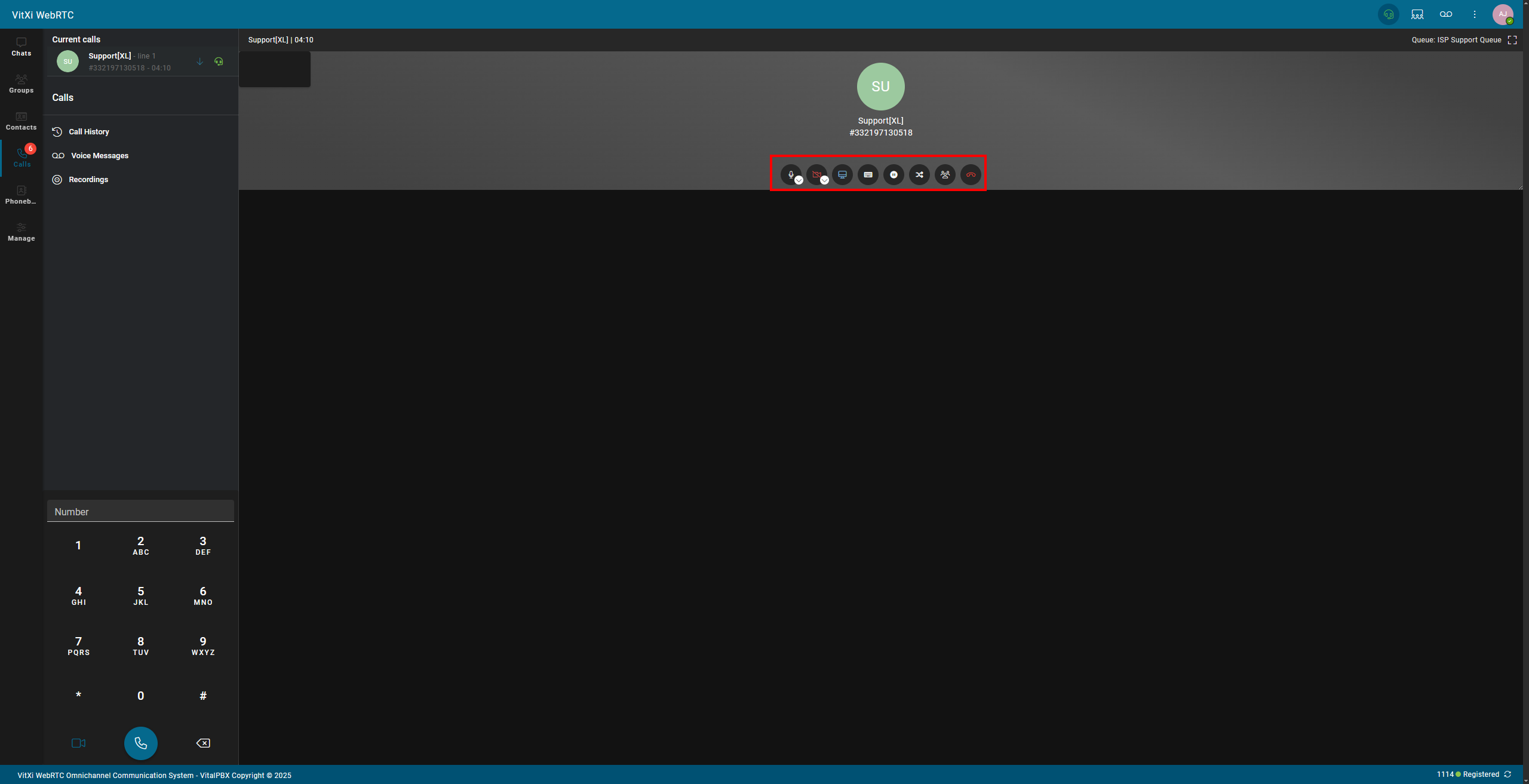
While on a call, you will be presented with a new set of buttons that provide functionality for the active call.
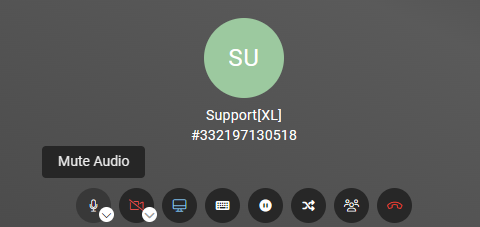
The first option on the bar will be the mute audio button. This will allow you to mute yourself while still being able to hear the customer.
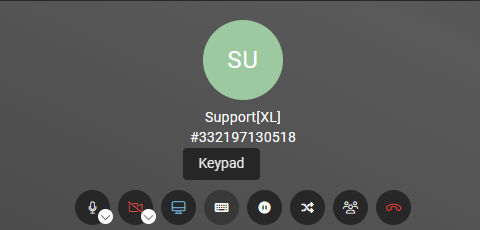
The fourth option on the bar will be the active keypad for the phone call. This keypad will be the only one to interact with a live call, compared to the default keypad used to dial out.
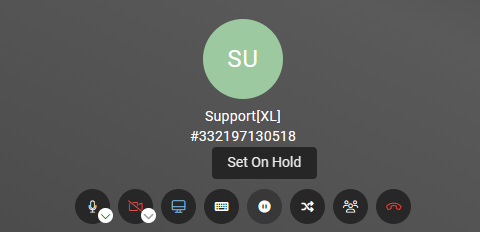
The fifth option on the bar will be the hold button. This will put the customer on hold with hold music if you need to step away from the call.
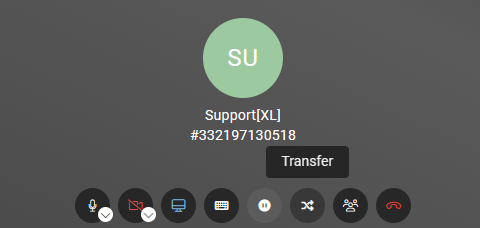
The sixth option in the bar will be the transfer button. You can use this to transfer the calls to another extension.
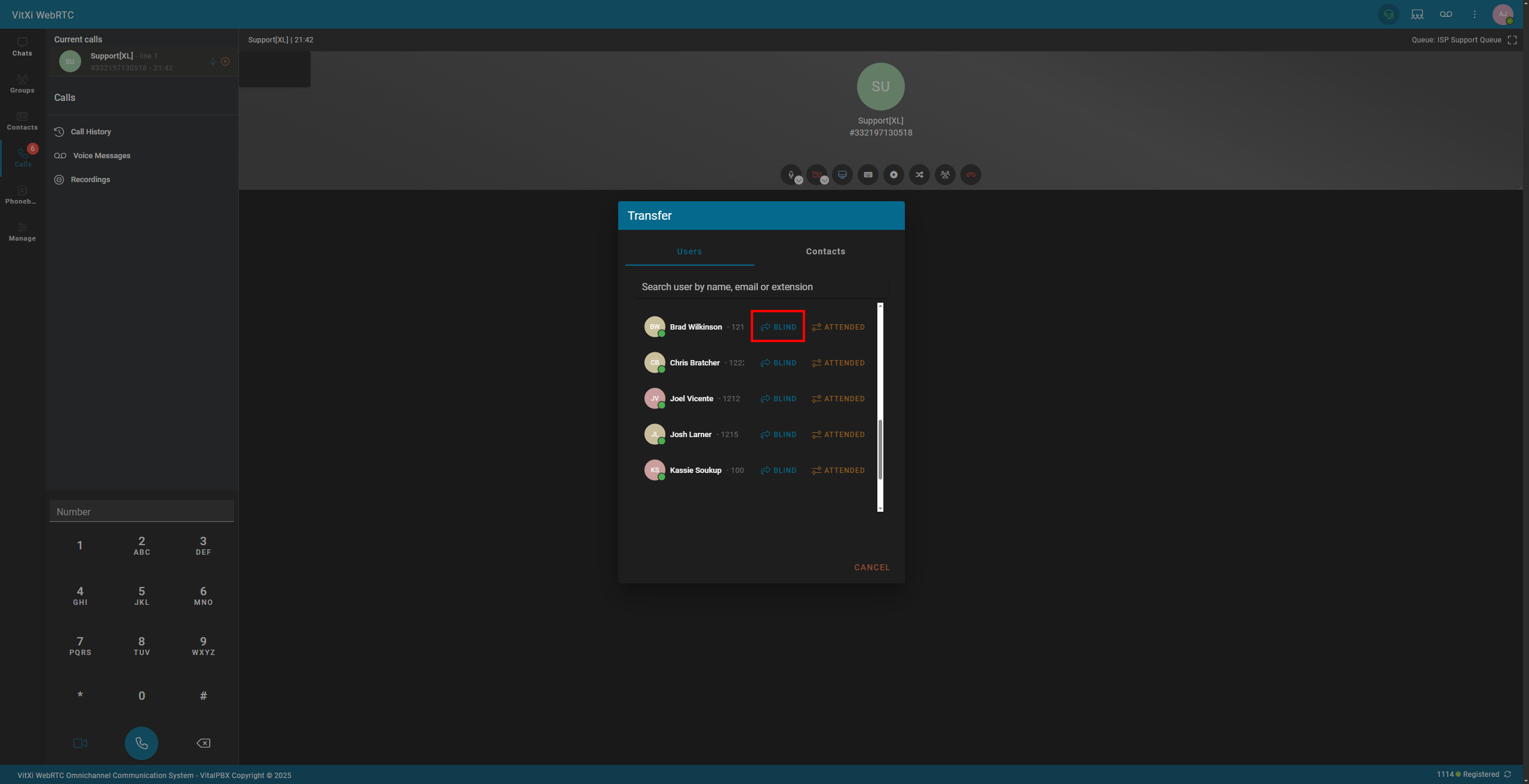
Once you click the transfer button, it will place the customer on hold. If you cancel transferring the customer, it will still be on hold until you click the hold button to take them off hold. If you wish to continue with the transfer, click blind transfer on the extension to which you want to transfer the call.
Contacts & Phonebooks
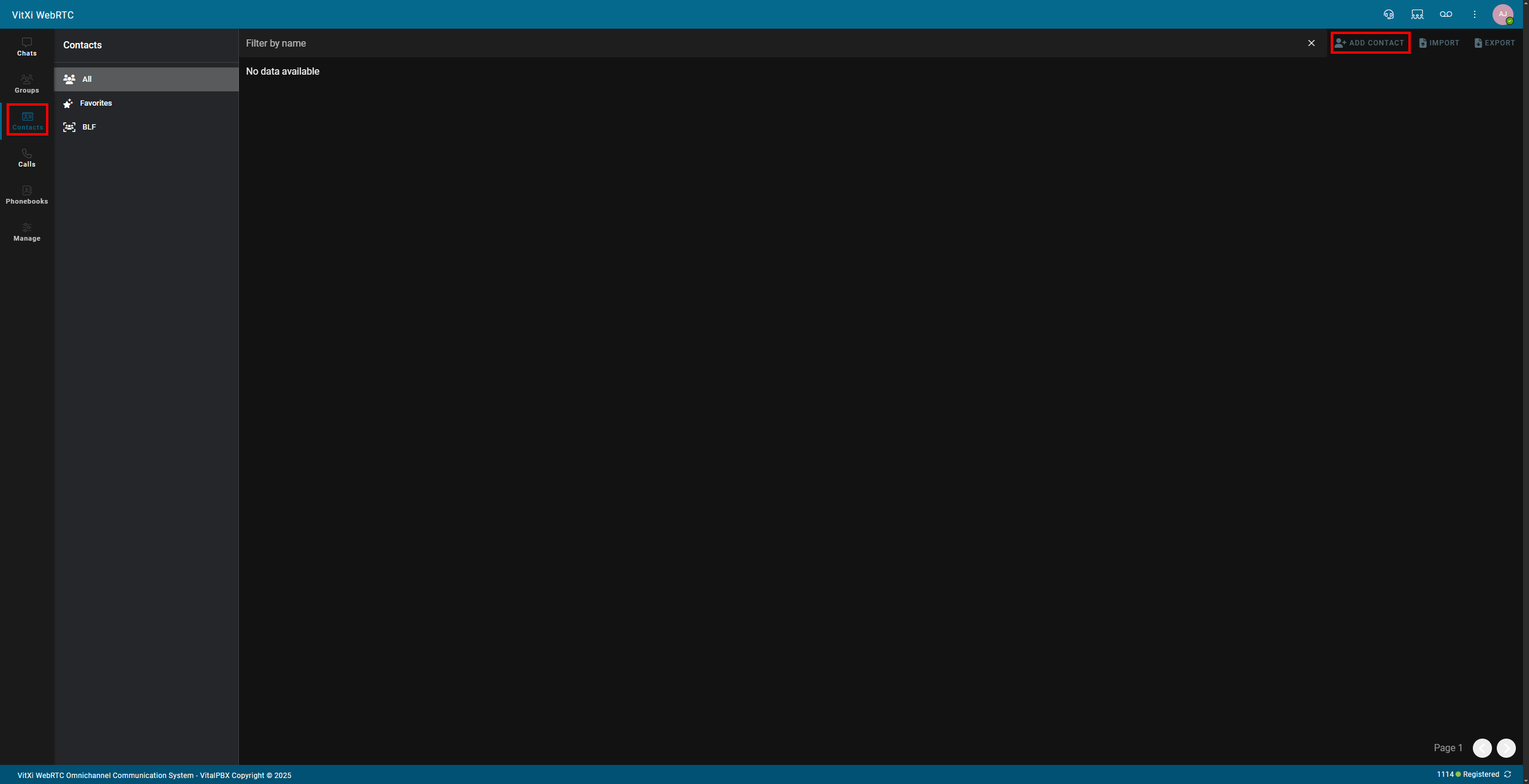
On the left-hand side, you can navigate to “Contacts” and then on the top right, click “Add Contact” to add a custom contact.
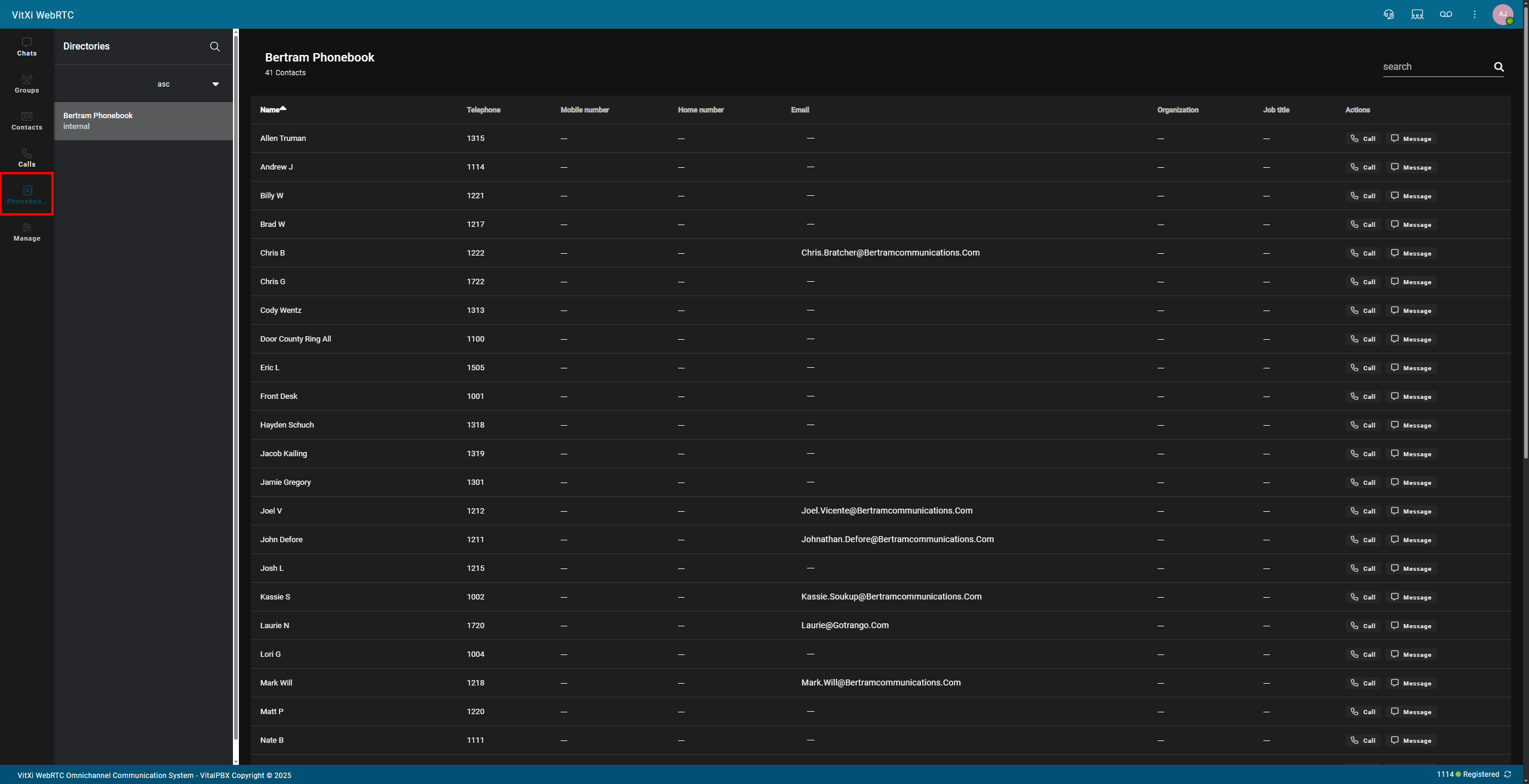
On the left-hand side, you can navigate to “Phone Book” to see all the internal extensions in the system.
Notifications
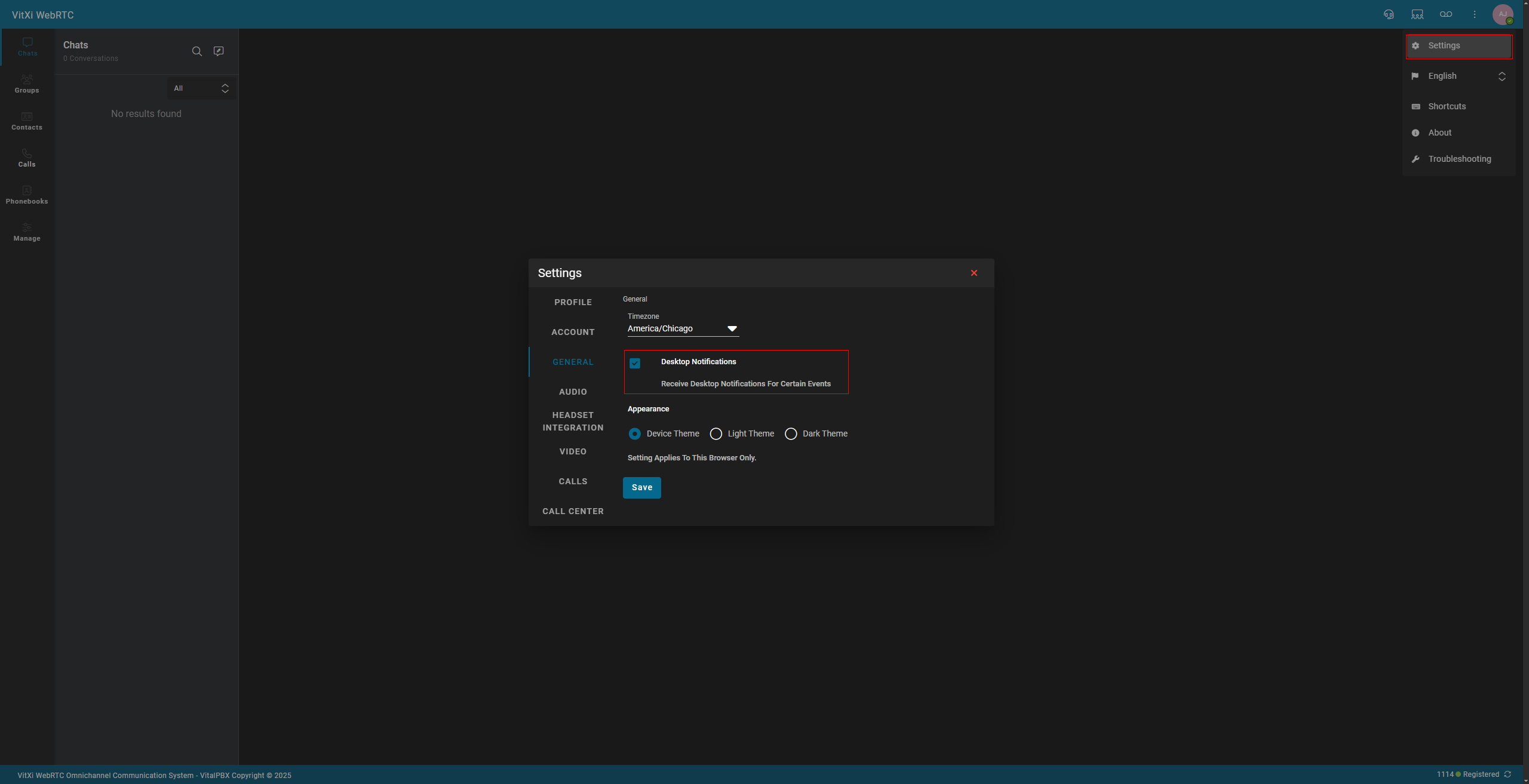
To adjust notification settings, first navigate to the 3 vertical dots at the top right of the webpage. Once in settings, navigate to “General” and make sure desktop notifications are enabled. This will provide a Windows notification noise as well as a pop-up on the bottom right of whichever monitor you’re currently focused on.
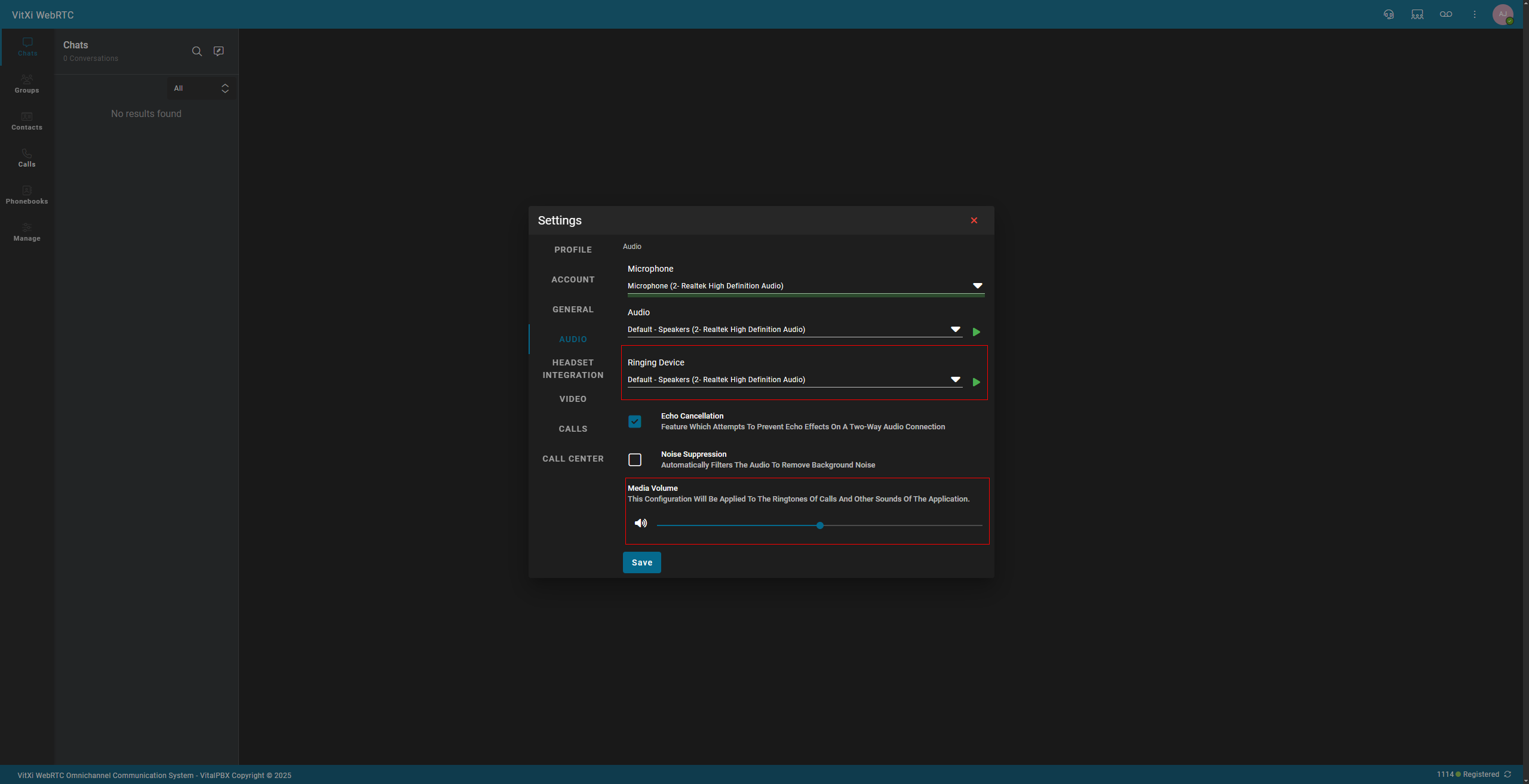
Navigate to “Audio” and make sure your “Ring Device” is set to the correct audio device, like your headset, so you can hear the ring audio. Also, make sure the “Media Volume” is turned up so you can hear.
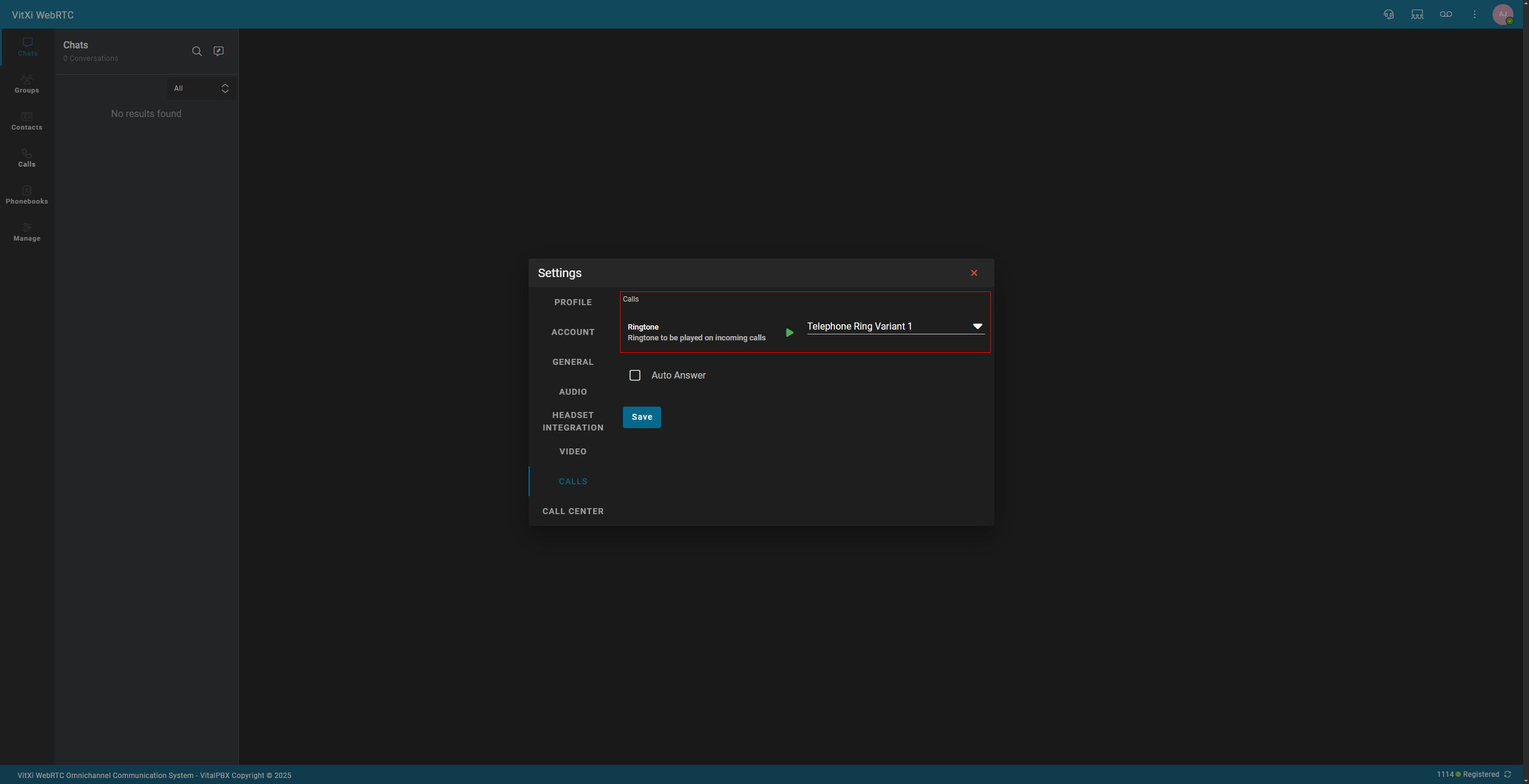
If you navigate to “Calls“, you can make adjustments to the ringtone.