
Sometimes, either due to it starting to fail or a customer misguidedly deciding to reset their router, a Neptune router becomes inaccessible to us. While we do not officially support these Mercury routers, this is what you can try in order to access the router and make it secure again. If these steps do not work, then they will need to replace their router. If they did not intentionally reset their router, then this is a strong indication the router might be failing, and even if it is made accessible again, it is recommended they replace the router.
Because Mercury routers were configured to only be remotely accessible through port 4, their IP address in Powercode appends a :4 to the link.
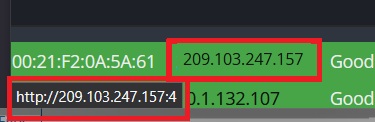
If you are dealing with a defaulted router, after clicking on the link you will need to delete the “:4” of the address in order to get to the login screen. The default login for reset Mercury routers is admin/admin
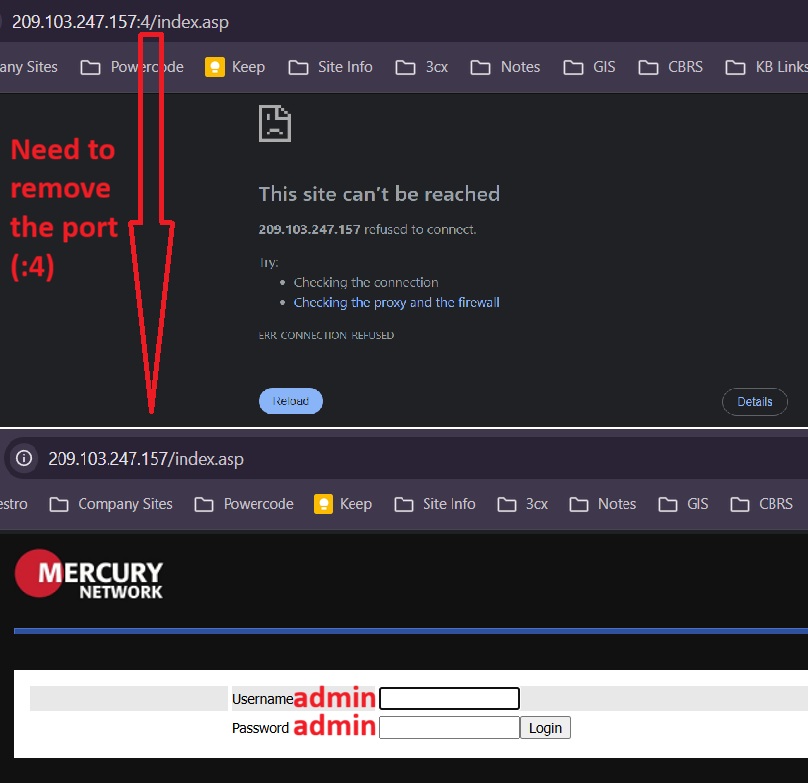
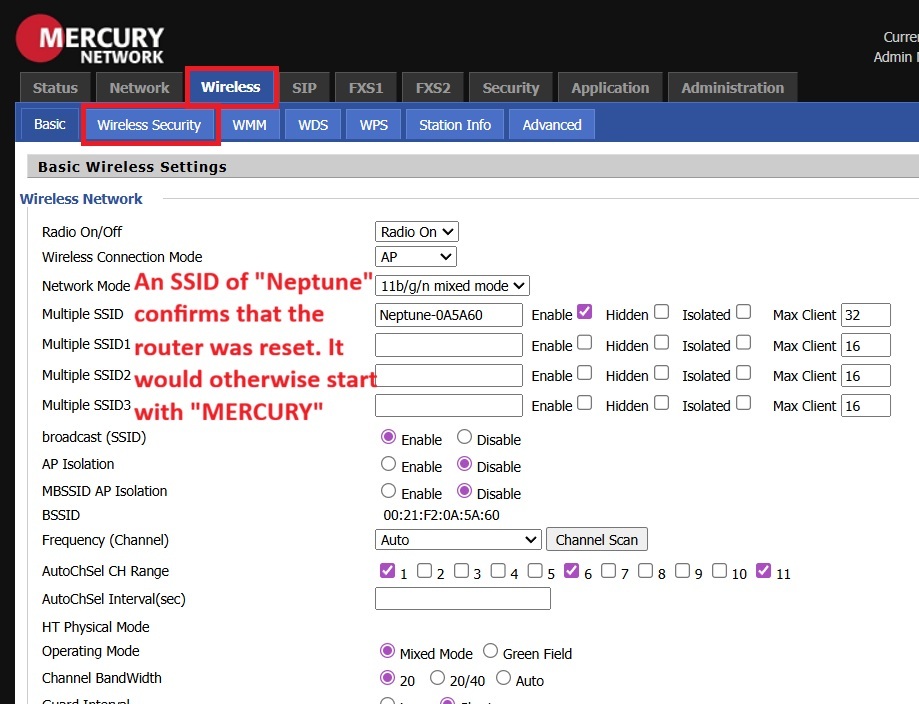
After logging in, you can confirm that the router was reset by clicking on the “Wireless” tab. A WiFi name starting with “Neptune…” rather then “MERCURY…” confirms that the router was reset. You can change the wifi name to whatever you like though we will have no guarantee of what the old wifi name or password was.
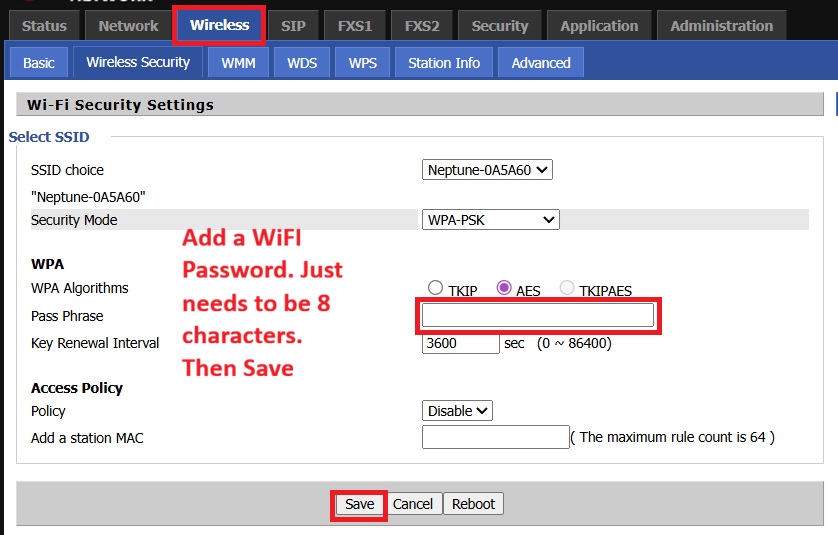
To set a wifi password click on the Wireless Security tab. It just needs to be at least 8 characters. After setting the wifi password click “Save” at the bottom of the screen. If it is a v2 or v3 router you will need to do this on the 2.4 and 5GHz Wireless tabs
For security purposes it is very important to change the default router login password. Click on the “Administration” tab and change the password to Neptune99
You should then change the web port to 4 which will make is accessible by directly clicking in Powercode. Finally, it is recommended that you disable telnet. This will help make it safer from attacks.

After making the changes you should scroll down to the bottom of the screen and click “Save”. After saving, it will try to reload the page using port 4. You will need to delete the :4 from the address bar again to login (using the updated Neptune99 password). After logging in click “Reboot” in the upper right corner.
While you can technically click “Save & Apply”, it generally requires a reboot anyway and it is generally best practice to get in the habit of Saving and then intentionally rebooting the router.
