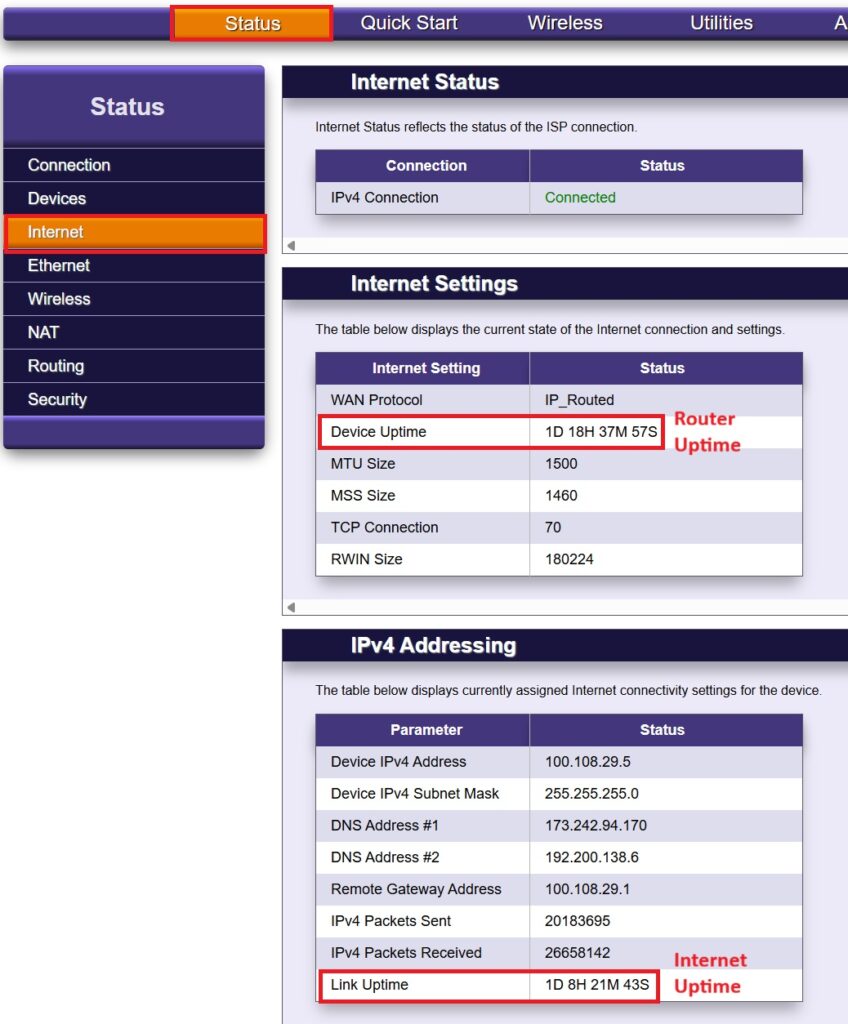
Especially when a customer is indicating they have been experiencing an intermittent connection it is useful to be able to see how long their radio, NID or managed router has been up and, in the case of fixed wireless, how long it has been connected to the broadcast site. Here is where to find these values on the various pieces of equipment.
Cambium PMP450 & PMP100/FSK (DCB, Bertram)
After logging into a PMP450 radio the General Status screen will show the radio Uptime under the Device Information of the radio. This reflects the time since it was last powercycled (or lost power).
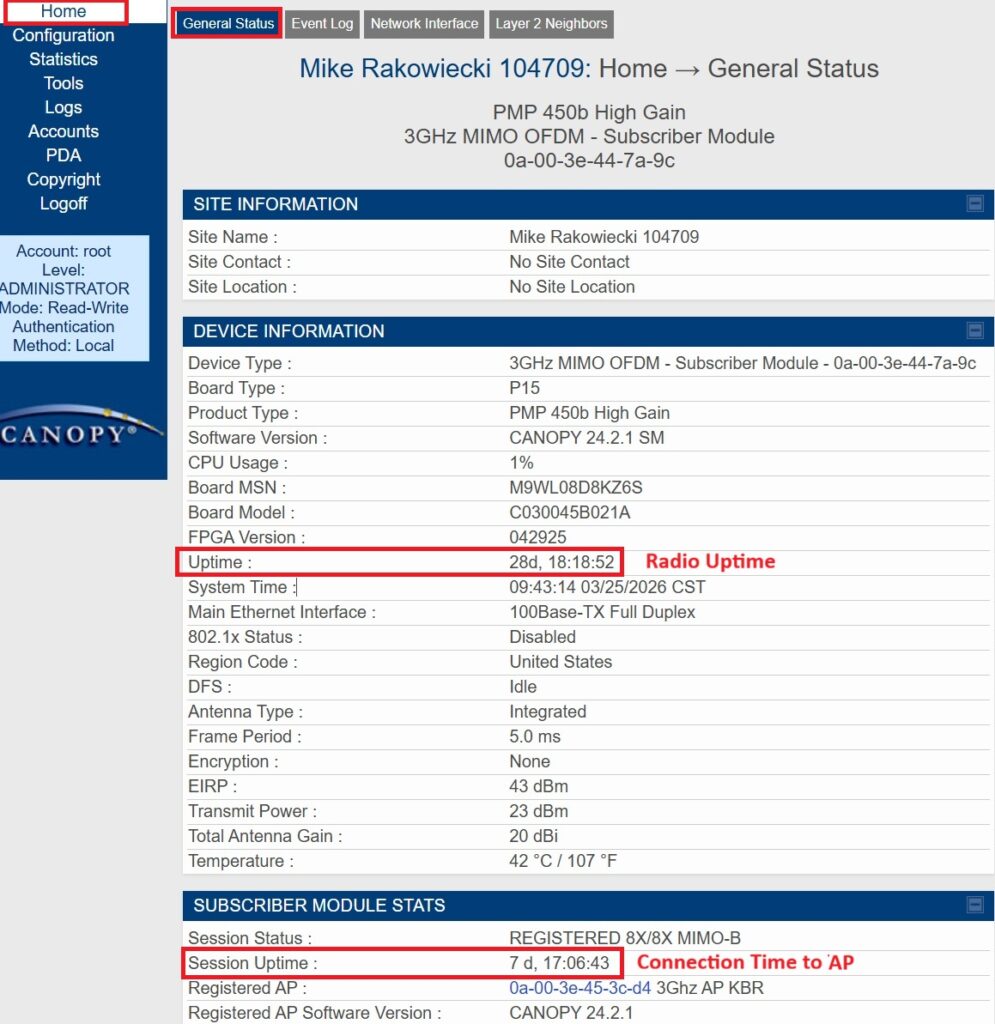
Under Subscriber Module Stats you will find the Session Uptime. This is how long that it has been connected to the AP on the tower. If the session uptime is less then the radio uptime (like you see above) this could indicate either that the radio disconnected from the AP on the tower due to poor signal, that the AP on the tower lost power or rebooted, or that somebody told their radio to rescan to try to find a better access point.
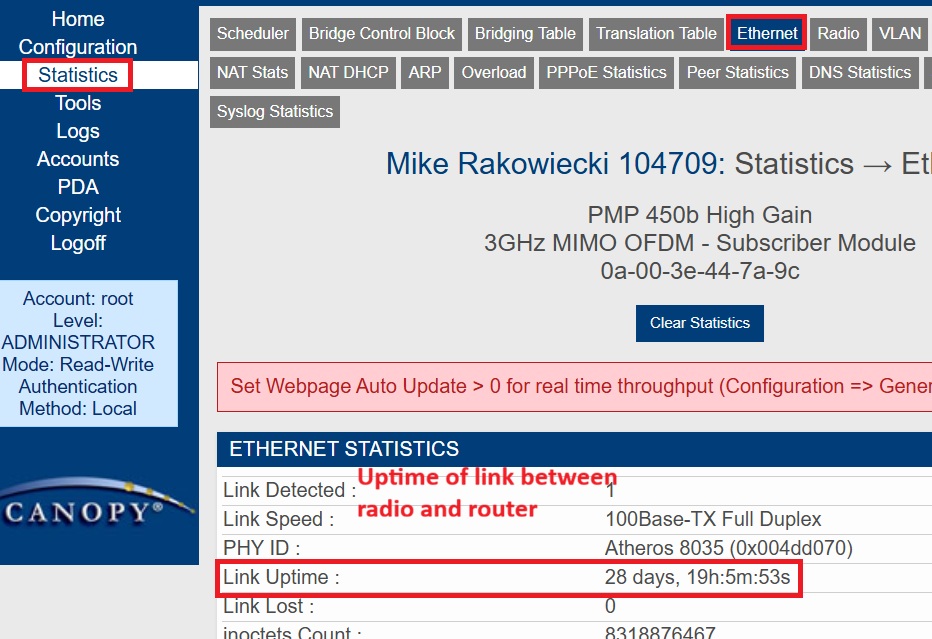
On PMP450s the other useful uptime is the uptime of the ethernet link between the radio and the router (this is not available on PMP100). You can find this by clicking on Statistics and then Ethernet and look for Link Uptime. Normally this should show either how long it has been since the router was rebooted or it will match the radio uptime if the router has not been rebooted since the radio was powered on. If it shows a more recent link uptime then ask if they powercycled the router or unplugged the cable more recently. If the link uptime keeps resetting (often accompanied by the Link Speed showing No Link) then that indicates a likely issue with the WAN port on the router, the patch cable, poe injector or the cable run. If the link is not dropping but they are indicating no connection, check for the router MAC in either the bridging table or NAT DHCP Table.
Cambium ePMP Radios (DCB, Bertram)
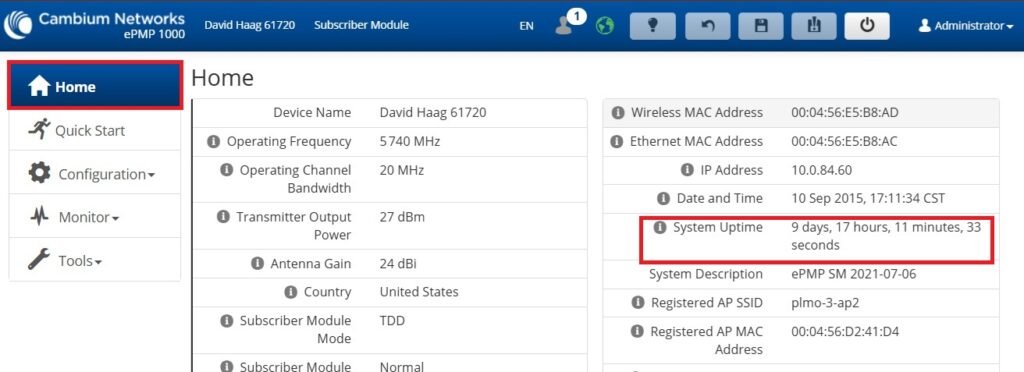
After logging into an ePMP radio the initial Home screen will show the System Uptime on the right side of the screen. This is how long the radio has been powered on. Ignore the Date and Time above this which will only be correct if an NTP server has been set.
To find how long the radio has been connected to it’s current Access Point, first click on Monitor and then Wireless. On the right side you will see 1 or more access points. The one that has “Success” under the Registration State is the AP they are connected to and will have a Session Time. This Session Time is how long it has been connected to the Access Point. Again, if the session uptime is less then the radio uptime this could indicate either that the radio disconnected from the AP on the tower due to poor signal, that the AP on the tower lost power or rebooted, or that somebody told their radio to rescan.
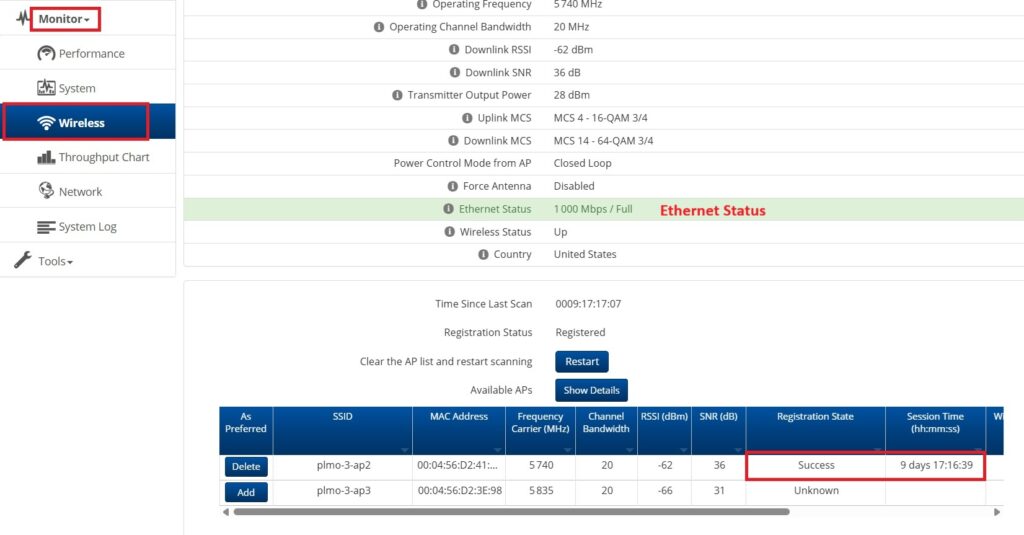
Unfortunately there is no way to see how long there has been an ethernet link to the router. As long as the ethernet status is staying up and not flapping then it should have a link. You can check the router MAC address in the bridging table to see if the router shows up.
Ubiquiti Powerbeam 5AC (XL, Optic Loop)
After logging into a Powerbeam 5AC radio the bottom of the main screen will show the uptime of the radio on the left side of the screen. On the right side of the screen you will see how long the radio has been connected to the AP on the tower under Wireless. There is also an Uptime of the AP itself above that (it is easy to get these two mixed up).
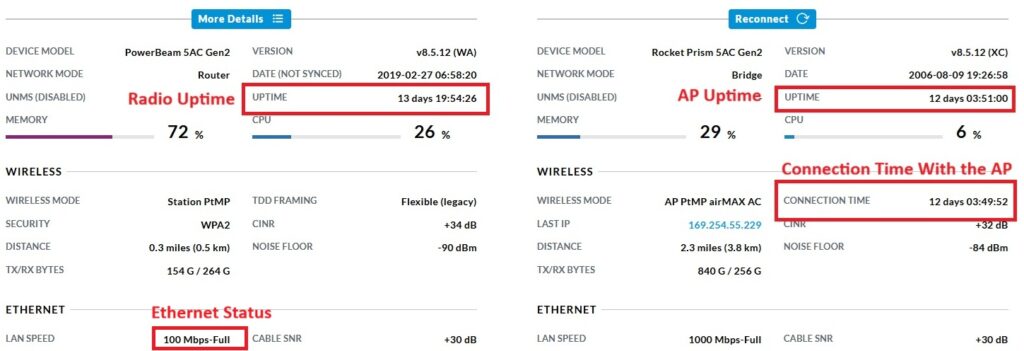
Note that if you are looking at a connection from the Access Point the two sides will be reversed. That is, the left side will be the access point and the right side will be the radio you are looking at.
Unfortunately there is no way to see how long there has been an ethernet link to the router. You can check the ethernet status on the bottom of the screen and then check either the Bridging or ARP Table of the radio to see if you can see the router at the other end of the link.
Ubiquiti Powerbeam M5 (XL, Optic Loop)
After logging into a Powerbeam M5 radio the radio Uptime will be on the top half of the screen. You will then need to click on AP Information in order to see the connection time with the access point.
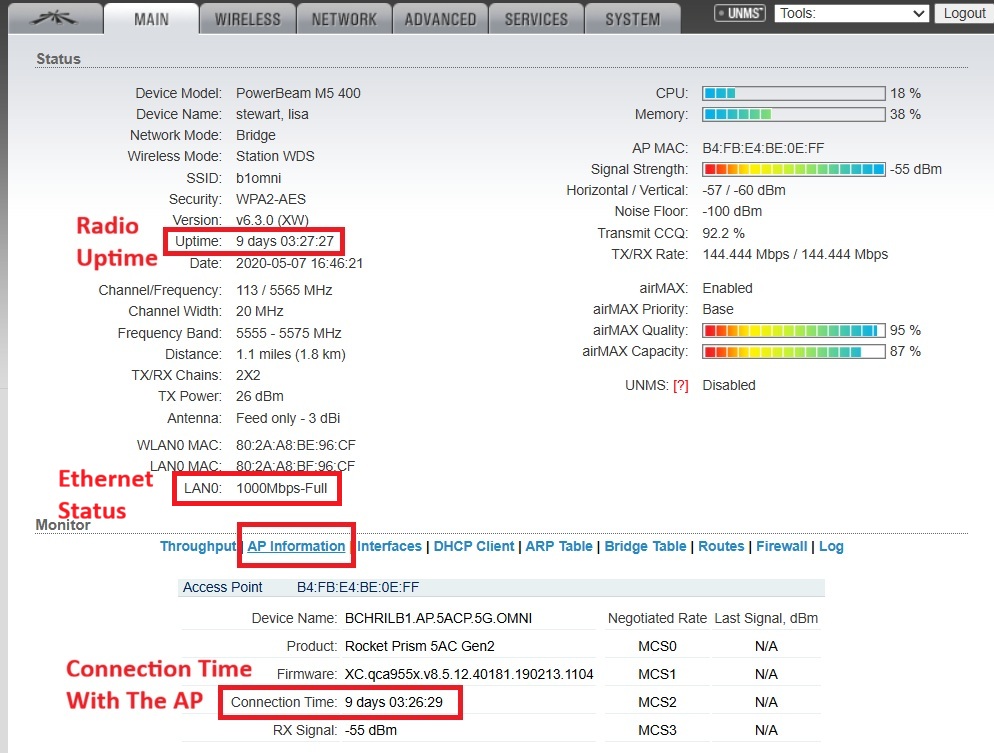
Unfortunately there is no way to see how long there has been an ethernet link to the rotuer. You can find the ethernet link status on this page by the LAN0 Status and then check either the Bridging or Arp Table of the radio to see if you can see the router at the other end of the link.
Mikrotik NID (Optic Loop Fiber)
With a Mikrotik, if after logging in you first get a screen that looks like what you see below, click on Webfig in the upper right corner to get the full interface.
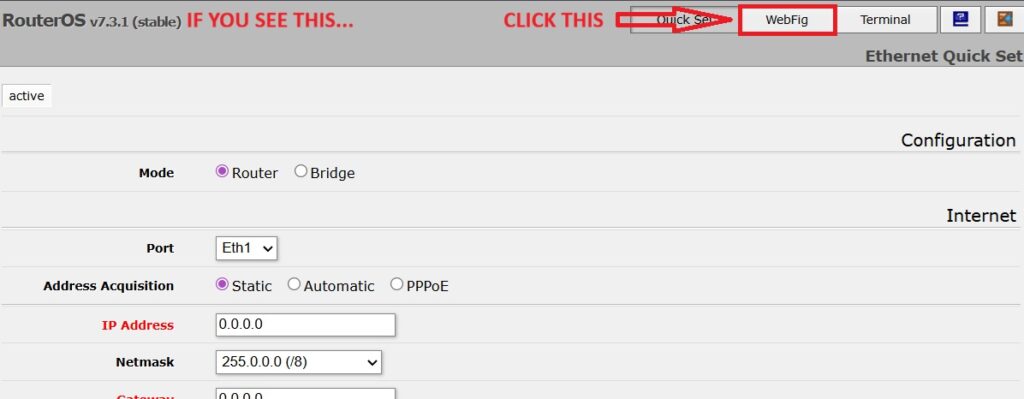
Otherwise you should see a bunch of menu options on the left side. Click on System, and then Resources. You will see the uptime of the NID on the right side of the screen.
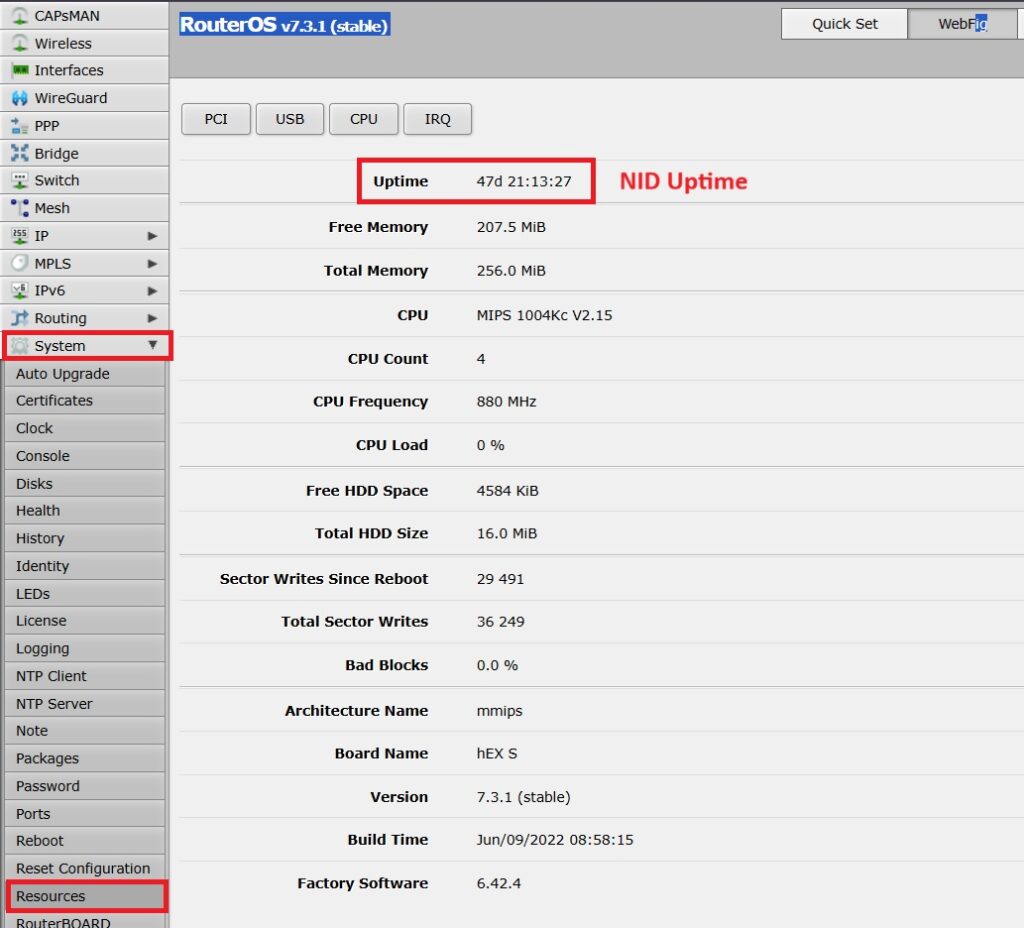
To see the uptime of the ethernet link you may need to first identify which ethernet port is their connection if they have a shared NID (instructions on how to do this are available here). If they do not have a shared NID then they should be on ether1.
Click on Interfaces, then the Interface tab and then click on their specific ethernet port.
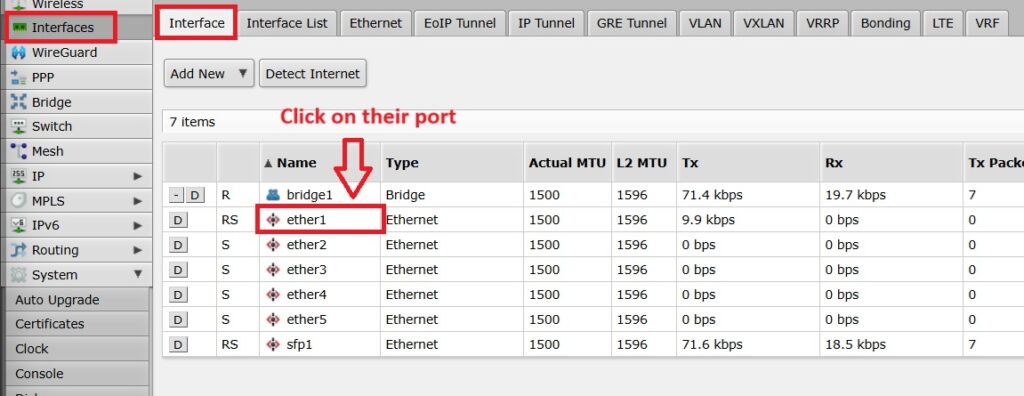
On the next screen you will have to scroll down multiple pages to where it says Status on the right side of the screen. In this section it will show you the Last Link Up Time which you can compare to today’s date to see how long it has been up.
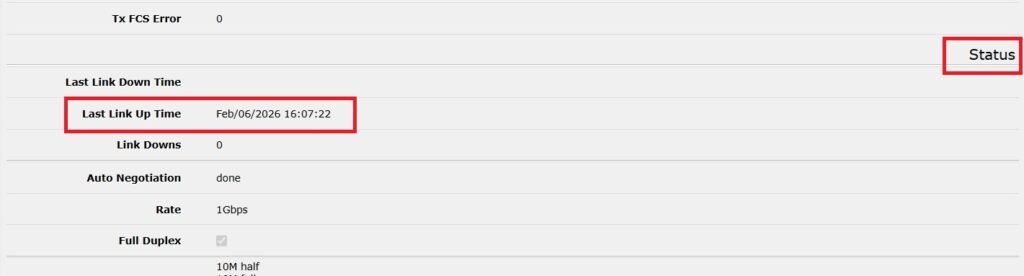
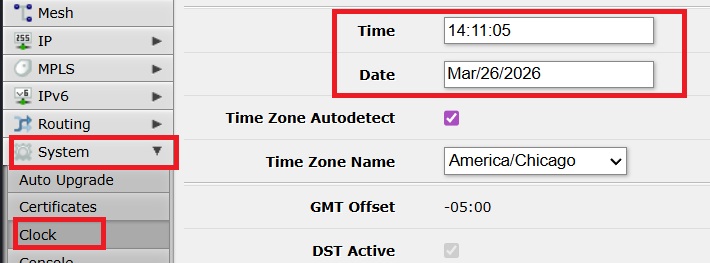
The date may not be accurate if the NID is not pulling the time from an NTP server. If the date doesn’t seem to make sense you can compare it to the time that the NID thinks it is by clicking on System and then Clock where it will show you what it believes is the current time.
Trango NID (Bertram Fiber)
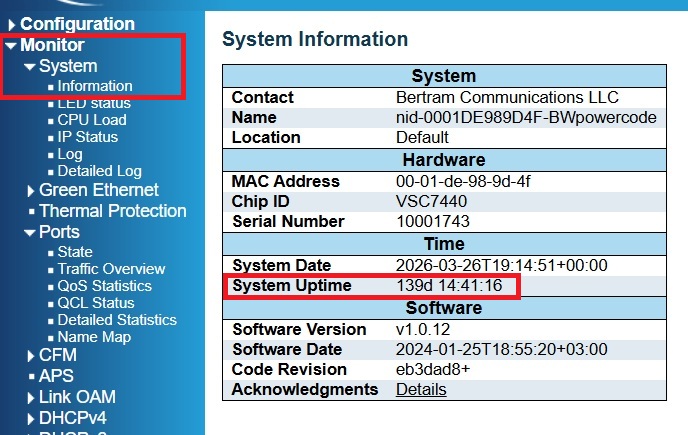
After logging into a Trango NID you can find the uptime by clicking on Monitor, System, and then Information.
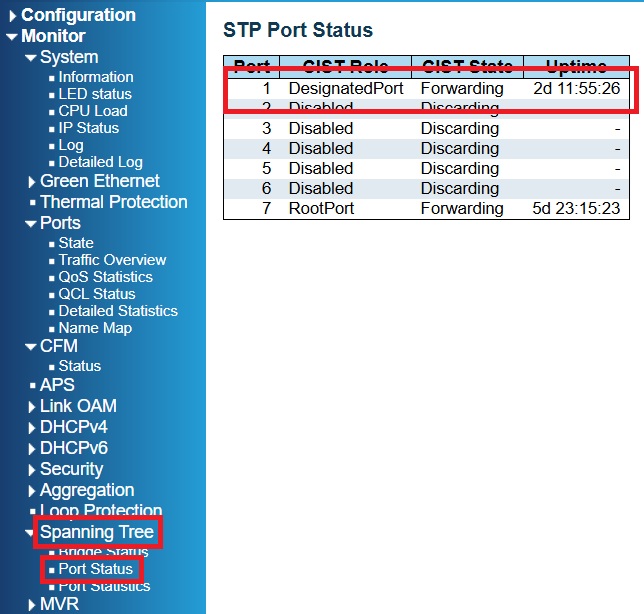
Because Bertram fiber NIDs are not shared at this time, all customers will be on Port 1 since they have to be plugged into the PoE that powers the NID. You can find the ethernet link by click on Spanning Tree and then Port Status. The Uptime is the time of the ethernet link. [NEED TO VERIFY THIS IS ACCURATE WITH ERIC OR TIM AND THAT A ROUTER REBOOT OR LINK DROP WILL ACTUALLY RESET THIS VALUE]
You can verify that the router is showing up by going to the bridging table as described here. You can also verify that the port is negotiating at 1Gigabit by checking the Port State as shown in the NID Troubleshooting guide.
Managed Router Uptime (DCB, Bertram – Mercury)
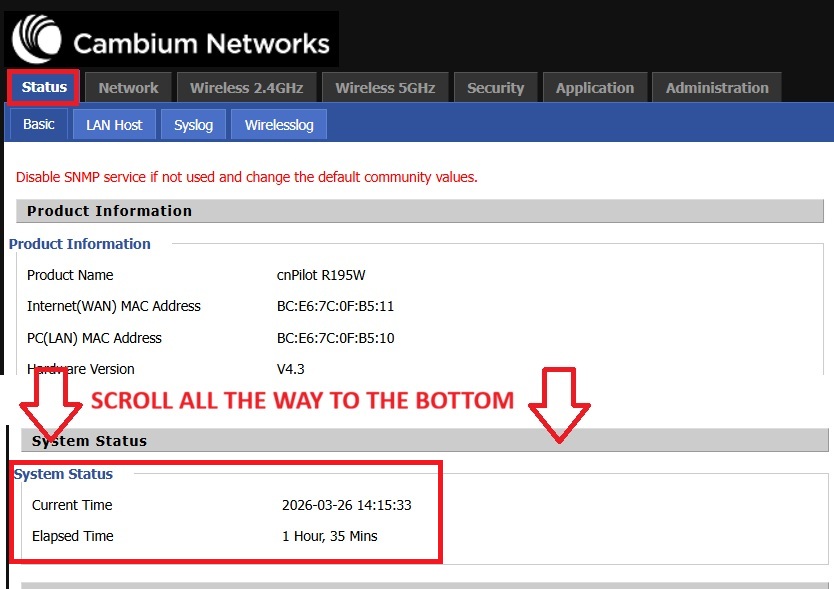
Because all Cambium, Readynet and Mercury Neptune routers use the same general software you can find the router uptime at the bottom of main Status screen of the router after logging in – regardless of the specific router type.
Managed Router Uptime (XL – Calix)
For Calix routers, you can find the uptime of the router after logging in under the Internet Status. The top half under Internet Settings will show the router uptime, while the IPv4 will show the Link uptime which should be how long they have had internet.